
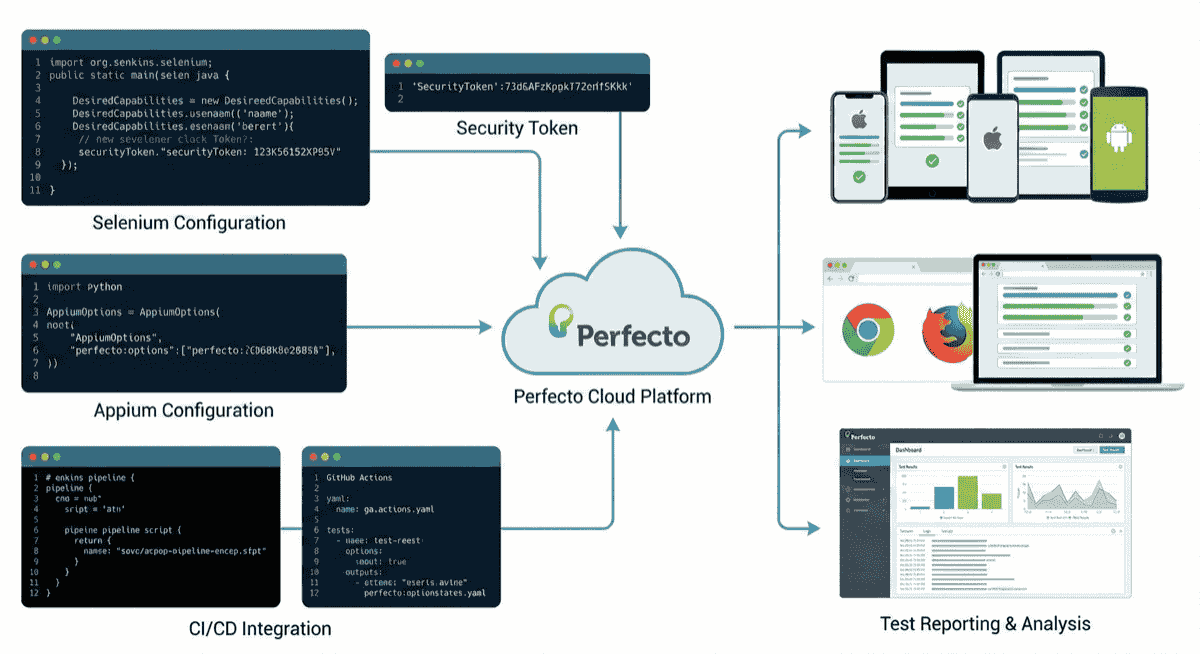
Perfecto tests failing? Performance issues? You’re not alone.
This guide covers the most common Perfecto problems users report — and how to fix them.
Intermittent Test Failures
The Problem
“Perfecto can be very slow, and often tests will fail intermittently with very little feedback. Often, I can execute a test script and it will work, walk away for a while and rerun the same script and it will fail. There is usually a good reason, but the reason is often not obvious to the user.”
— Gartner Peer Insights
Symptoms:
- Tests pass sometimes, fail others
- Same test script produces different results
- No clear error message explaining failure
- Flaky CI pipelines
Causes
- Device state variation: Different sessions may have different app states
- Network conditions: Cloud connectivity fluctuates
- Device availability: Tests wait for busy devices
- Timing issues: Elements load at different speeds
Solutions
Add retry logic:
public void executeWithRetry(Runnable test, int maxRetries) {
    Exception lastException = null;
    for (int i = 0; i < maxRetries; i++) {
        try {
            test.run();
            return; // Success
        } catch (Exception e) {
            lastException = e;
            System.out.println("Attempt " + (i + 1) + " failed: " + e.getMessage());
        }
    }
    throw new RuntimeException("All " + maxRetries + " attempts failed", lastException);
}
Use explicit waits:
// Instead of Thread.sleep()
WebDriverWait wait = new WebDriverWait(driver, Duration.ofSeconds(30));
WebElement element = wait.until(ExpectedConditions.elementToBeClickable(By.id("button")));
element.click();
Reset app state:
// Force clean app state between tests
capabilities.setCapability("fullReset", true);
// Or at minimum
capabilities.setCapability("noReset", false);
Use broader device criteria:
// Instead of specific UDID
capabilities.setCapability("model", "Galaxy S*"); // Wildcard
capabilities.setCapability("platformVersion", ">=13"); // Version range
Slow Performance
The Problem
“It is slow compared to physical device testing.”
— PeerSpot review
“Intermittent slowness on screen.”
— Capterra review
“Sometimes runs a little slow on iOS.”
— Capterra review
Performance issues manifest as:
- Slow element interactions
- Long app launch times
- Delayed screenshot capture
- Timeout errors
Causes
- Network latency: Distance between you and Perfecto’s cloud
- Peak hour congestion: High demand periods
- iOS emulation: iOS tests often slower than Android
- Large app size: Bigger apps take longer to install
- Video recording overhead: Capturing video adds processing
Solutions
Test during off-peak hours:
Perfecto’s cloud is busiest during US/EU business hours. Early morning or weekend testing often performs better.
Increase timeouts strategically:
// Command timeout
capabilities.setCapability("newCommandTimeout", 180);

// Implicit wait (use sparingly)
driver.manage().timeouts().implicitlyWait(Duration.ofSeconds(15));

// Page load timeout for web
driver.manage().timeouts().pageLoadTimeout(Duration.ofSeconds(60));
Optimize app size:
Remove unused resources, compress assets, and use app thinning before uploading.
Disable unnecessary features:
// If you don't need video
capabilities.setCapability("takesScreenshot", false);

// If you don't need device vitals
capabilities.setCapability("perfecto:options", new HashMap<String, Object>() {{
    put("enableAppiumBehavior", true);
    put("deviceVitals", false);
}});
Consider private cloud:
Enterprise customers with performance requirements may benefit from dedicated infrastructure.
Device Unavailable Errors
The Problem
“While Perfecto Mobile has a vast library of devices, there may be times when specific devices are in high demand and unavailable for testing. This can lead to delays in testing schedules.”
— CheckOps
Symptoms:
- “Device not found” errors
- Long waits for device allocation
- Tests fail before starting
Causes
- Device busy: Another user has the device
- Device maintenance: Device temporarily offline
- Overly specific criteria: Your selection matches few devices
- License limits: You’ve hit your concurrent session limit
Solutions
Use flexible device selection:
// Bad: Too specific
capabilities.setCapability("deviceName", "00008030-001A5D123E3A002E");

// Better: Model-based
capabilities.setCapability("model", "iPhone 15");

// Best: Wildcards and ranges
capabilities.setCapability("model", "iPhone 1*");
capabilities.setCapability("platformVersion", ">=17");
Check device availability first:
// Use Perfecto API to check availability
// GET https://cloud.perfectomobile.com/services/handsets
// Filter for available devices before selecting
Implement device fallback:
String[] preferredDevices = {"iPhone 15", "iPhone 14", "iPhone 13"};

for (String device : preferredDevices) {
    try {
        capabilities.setCapability("model", device);
        driver = new IOSDriver(new URL(cloudUrl), capabilities);
        break; // Success
    } catch (Exception e) {
        System.out.println(device + " unavailable, trying next...");
    }
}
Schedule tests intelligently:
If specific devices are critical, schedule tests during low-demand periods or consider dedicated devices.
Security Token Issues
The Problem
Common authentication errors:
- “Invalid security token”
- “Authentication failed”
- “Token expired”
Causes
- Token expired: Security tokens have expiration
- Token copied incorrectly: Extra spaces or missing characters
- Wrong token type: Using wrong credential type
- Environment variable not set: Code can’t find token
Solutions
Regenerate token:
- Log into Perfecto portal
- Go to My Profile > Security Token
- Click Generate new token
- Copy carefully (no extra spaces)
Verify environment variable:
# Check if set
echo $PERFECTO_TOKEN

# Should output your token, not empty
// In code, verify it's loaded
String token = System.getenv("PERFECTO_TOKEN");
if (token == null || token.isEmpty()) {
    throw new RuntimeException("PERFECTO_TOKEN not set");
}
System.out.println("Token length: " + token.length()); // Verify it's reasonable
Check token format:
Perfecto tokens are typically JWT format (long string starting with eyJ). If yours looks different, you may have copied the wrong value.
App Upload and Installation Issues
The Problem
- “App not found in repository”
- “Installation failed”
- “App package mismatch”
Causes
- App not uploaded: Repository doesn’t have your app
- Wrong repository path: Using incorrect path format
- App signing issues: iOS provisioning problems
- Package name mismatch: Wrong appPackage or bundleId
Solutions
Verify app exists:
- Go to Perfecto portal > Media Repository
- Search for your app
- Note exact path (e.g.,
PRIVATE:MyApp.apk)
Use correct path format:
// Public repository (shared)
capabilities.setCapability("app", "PUBLIC:apps/MyApp.apk");

// Private repository (your account)
capabilities.setCapability("app", "PRIVATE:MyApp.apk");

// Group repository
capabilities.setCapability("app", "GROUP:MyOrg/MyApp.apk");
Re-upload app:
# Delete old version
curl -X DELETE "https://cloud.perfectomobile.com/services/repositories/media/PRIVATE:MyApp.apk" \
  -H "Perfecto-Authorization: $PERFECTO_TOKEN"

# Upload new version
curl -X POST "https://cloud.perfectomobile.com/services/repositories/media/PRIVATE:MyApp.apk" \
  -H "Perfecto-Authorization: $PERFECTO_TOKEN" \
  -H "Content-Type: application/octet-stream" \
  --data-binary @./MyApp.apk
Verify package information:
// Android - match your app's package
capabilities.setCapability("appPackage", "com.yourcompany.yourapp");
capabilities.setCapability("appActivity", "com.yourcompany.yourapp.MainActivity");

// iOS - match your app's bundle ID
capabilities.setCapability("bundleId", "com.yourcompany.yourapp");
UI and Interface Issues
The Problem
“Password input feature which does not work well, the not friendly UI (I prefered for example the one of Test Object bought by Sauce Labs).”
— Capterra review
“There could be some improvements done on the interface. At times, there has been a bit of a struggle when finding things on the interface.”
— PeerSpot review
Common UI Issues
- Difficulty finding devices
- Confusing navigation
- Reports hard to locate
- Settings buried in menus
Solutions
Learn keyboard shortcuts:
Perfecto has keyboard shortcuts for common actions. Check the documentation for your most-used features.
Use search effectively:
The portal has search functionality. Use it for devices, apps, and test results rather than navigating menus.
Bookmark common pages:
Save direct links to:
- Your preferred device list
- Reporting dashboard
- App repository
Request training:
Enterprise customers can request training sessions. Perfecto’s support team can walk through efficient workflows.
Network and Connectivity Issues
The Problem
“Another drawback is the reliance on stable internet connectivity, as network issues could potentially slow down or interrupt access to cloud-based testing devices.”
— SoftwareReviews
Symptoms:
- Connection drops mid-test
- “Failed to connect to remote server”
- Timeouts during device interaction
Causes
- Unstable internet: Your connection fluctuates
- Firewall blocking: Corporate firewalls block Perfecto
- VPN interference: VPN routing affects connectivity
- Cloud region latency: Distance to Perfecto servers
Solutions
Check network stability:
# Test connectivity to Perfecto
ping yourcloud.perfectomobile.com

# Check for packet loss
ping -c 100 yourcloud.perfectomobile.com | grep loss
Configure firewall:
Ensure these are allowed:
- HTTPS (443) to *.perfectomobile.com
- WebSocket connections for live view
- Perfecto-specific ports (check documentation)
Try different network:
If corporate network blocks Perfecto, test from:
- Mobile hotspot
- Home network
- VPN-less connection
Contact Perfecto for optimal region:
Perfecto has multiple cloud regions. Ensure you’re using the one closest to your location.
Reporting Issues
The Problem
“Perfecto dashboard does not provide direct report on test Coverage. Just provides number of test cases passed/failed through Jenkins pipeline.”
— Capterra review
Solutions
Use Reportium SDK:
The SDK provides more detailed reporting than basic execution:
ReportiumClient reportiumClient = new ReportiumClientFactory()
    .createPerfectoReportiumClient(executionContext);

// Add test steps for better granularity
reportiumClient.stepStart("Login to application");
// ... login code
reportiumClient.stepEnd();

reportiumClient.stepStart("Navigate to dashboard");
// ... navigation code
reportiumClient.stepEnd();
Export to external tools:
Integrate Perfecto reports with:
- Jenkins (Perfecto plugin)
- Jira (for defect tracking)
- Slack (for notifications)
Use tags for filtering:
reportiumClient.testStart("Login Test",
    new TestContext("Smoke", "Login", "Sprint-42"));
Tags make it easier to filter and analyze test results.
Tests Work Locally But Fail on Perfecto
The Problem
Tests that pass on local devices fail when run against Perfecto cloud.
Causes
- Timing differences: Cloud has more latency
- Element locators: Different rendering on cloud devices
- App state: Cloud devices may have different state
- Version mismatches: Different app or OS versions
Solutions
Add explicit waits:
// Replace all Thread.sleep() with explicit waits
WebDriverWait wait = new WebDriverWait(driver, Duration.ofSeconds(30));

// Wait for element to be clickable, not just present
WebElement button = wait.until(
    ExpectedConditions.elementToBeClickable(By.id("submit"))
);
button.click();
Use robust locators:
// Avoid position-based locators
// Bad
By.xpath("//div[3]/button[1]")

// Better - use IDs or content
By.id("loginButton")
By.xpath("//button[contains(text(), 'Login')]")
By.accessibilityId("login-button")
Verify app installation:
// Force fresh install
capabilities.setCapability("fullReset", true);

// Or verify app version matches expected
String appVersion = driver.getCapabilities().getCapability("app");
System.out.println("Running on app: " + appVersion);
Match local and cloud environments:
Ensure you’re testing against:
- Same app version
- Same OS version
- Similar device model
When to Consider Alternatives
If you’re experiencing persistent issues:
Consistent intermittent failures:
“Often tests will fail intermittently with very little feedback… There is usually a good reason, but the reason is often not obvious to the user.”
Chronic performance issues:
“It is slow compared to physical device testing.”
Complexity overwhelming your team:
“One downside of Perfecto Mobile is its complexity, which can result in a steeper learning curve.”
Alternative Approaches
BrowserStack — More reviews, higher ease-of-use ratings, lower price point.
Test on your own devices — Eliminates cloud latency and device availability issues entirely.
Hybrid approach — Critical tests on dedicated/owned devices, broader coverage on cloud.
Frequently Asked Questions
Why are my Perfecto tests failing intermittently?
Intermittent failures in Perfecto often stem from device availability, network latency, or cloud infrastructure issues. Users report “tests will fail intermittently with very little feedback.” Add retry logic, increase timeouts, and use less specific device criteria to improve reliability.
Why is Perfecto so slow?
Perfecto slowness can result from network latency to their cloud, device contention during peak hours, or slow iOS emulation. Users note “it is slow compared to physical device testing.” Try testing during off-peak hours, use devices closer to your region, or consider private cloud for dedicated performance.
Why can’t I connect to a Perfecto device?
Device connection failures happen when devices are busy, your security token expired, or there are network issues. Verify your token is valid, check device availability in the portal, and try using wildcard device selection.
How do I fix Perfecto security token errors?
Regenerate your security token from My Profile > Security Token in the Perfecto portal. Ensure no extra spaces when copying, verify your environment variable is set correctly, and check the token hasn’t expired.
Why do my tests work locally but fail on Perfecto?
Tests may fail on Perfecto due to timing differences, network conditions, or device state variations. Add explicit waits instead of hard sleeps, use WebDriverWait for element interactions, and verify your app is properly uploaded to the Perfecto repository.
How do I get better support from Perfecto?
Enterprise customers get priority support and dedicated customer success. If you’re on a lower tier, use Perfecto’s documentation portal and online training modules. For persistent issues, request a call with support rather than relying on email.
Quick Troubleshooting Checklist
| Issue | First Check | Quick Fix |
|---|---|---|
| Security token error | Token in env variable | Regenerate token |
| Device unavailable | Portal device list | Use wildcard selection |
| Slow performance | Peak hours? | Test off-peak |
| Intermittent failures | Same device each time? | Add retry logic |
| App not found | Repository path | Re-upload app |
| Connection drops | Network stability | Check firewall |
| Tests timeout | Hard-coded sleeps? | Use explicit waits |
Summary
Most Perfecto issues fall into these categories:
- Intermittent failures — Add retry logic and explicit waits
- Slow performance — Test off-peak, optimize app size
- Device availability — Use flexible selection criteria
- Authentication — Regenerate security token
- App issues — Verify repository path and package names
If problems persist despite optimization, the underlying cloud architecture may not fit your needs. Consider alternatives that give you more control over the testing environment.
Tired of cloud testing issues? DeviceLab runs tests on your own devices — zero cloud latency, no device availability problems, predictable costs at $99/device/month.