
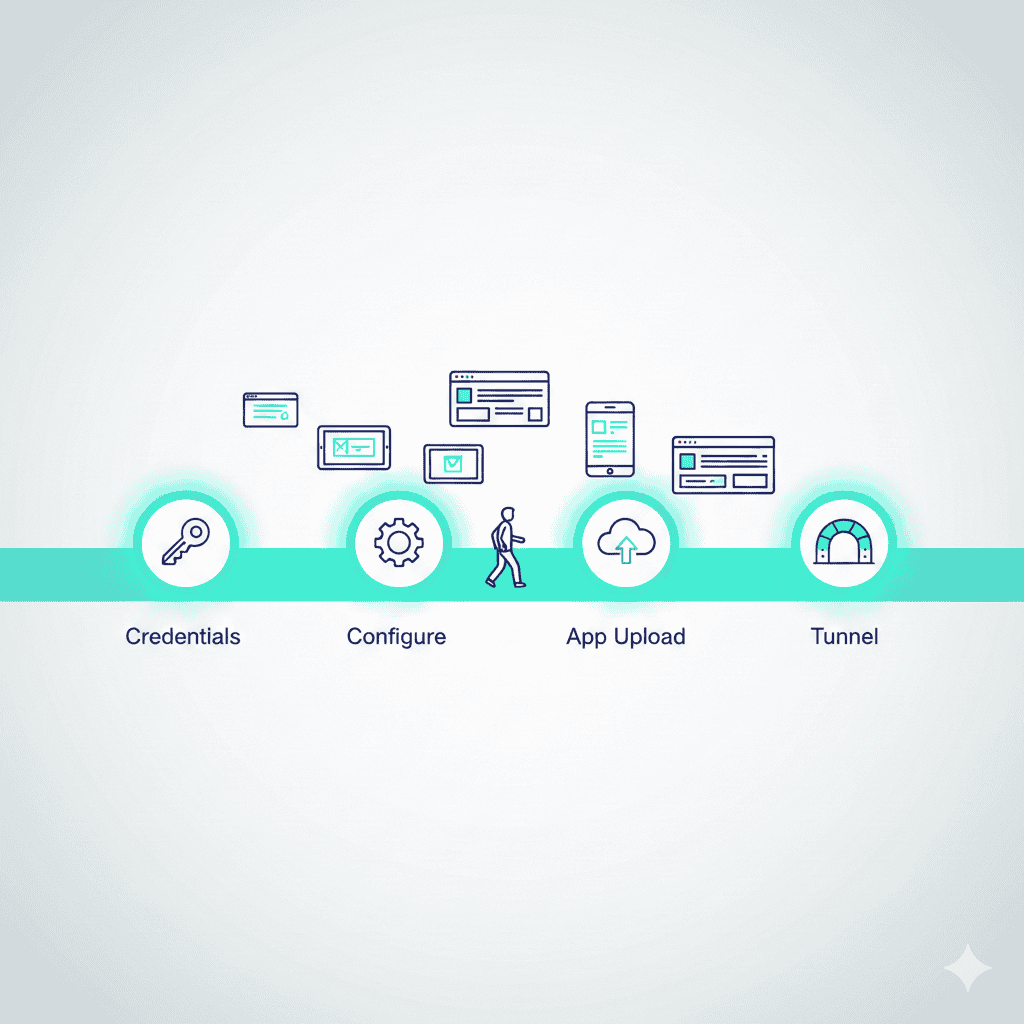
This LambdaTest setup guide walks you through everything you need to run your first test—from account creation to Appium mobile testing and Selenium browser automation.
Note: LambdaTest has rebranded to TestMu AI. The information in this article still applies to the platform under its new name.
LambdaTest setup involves several steps: getting credentials, configuring capabilities, uploading apps (for mobile), and setting up LambdaTest Tunnel for internal applications. This tutorial covers each step with working code examples.
Prerequisites
Before starting:
- A LambdaTest account (free tier available)
- Your test framework installed locally (Selenium, Appium client)
- For mobile: Your app binary (.apk for Android, .ipa for iOS)
- For internal apps: LambdaTest Tunnel downloaded
Step 1: Get Your Credentials
- Log in to lambdatest.com
- Go to Settings → Account Settings
- Find your Username and Access Key
Store these securely—never commit them to version control:
# Set environment variables
export LT_USERNAME="your-username"
export LT_ACCESS_KEY="your-access-key"
Step 2: Choose Your Data Center
LambdaTest has multiple data centers. Choose the closest to your team:
| Region | Hub URL | Best For |
|---|---|---|
| US | hub.lambdatest.com |
Americas |
| EU | hub.eu.lambdatest.com |
Europe |
| AP | hub.ap.lambdatest.com |
Asia-Pacific |
Important: Use the same region for your tunnel and tests.
LambdaTest Selenium Setup
Basic Selenium Configuration
from selenium import webdriver
import os

# Capabilities using LT:Options format
capabilities = {
    "browserName": "Chrome",
    "browserVersion": "latest",
    "platformName": "Windows 11",
    "LT:Options": {
        "username": os.environ["LT_USERNAME"],
        "accessKey": os.environ["LT_ACCESS_KEY"],
        "project": "My Project",
        "build": "Build 1.0",
        "name": "My First Test",
        "resolution": "1920x1080",
        "network": True,
        "console": True,
        "video": True
    }
}

# Connect to LambdaTest
driver = webdriver.Remote(
    command_executor="https://hub.lambdatest.com/wd/hub",
    desired_capabilities=capabilities
)

# Run your test
driver.get("https://example.com")
assert "Example" in driver.title

# Always quit to end the session
driver.quit()
Available Browsers
| Browser | Versions | Platforms |
|---|---|---|
| Chrome | 66+ | Windows, macOS, Linux |
| Firefox | 60+ | Windows, macOS, Linux |
| Safari | 11+ | macOS only |
| Edge | 80+ | Windows, macOS |
| Opera | 58+ | Windows, macOS |
Check the Capabilities Generator for valid combinations.
Setting Screen Resolution
"LT:Options": {
    "resolution": "1920x1080"
}
Available resolutions: 1024x768, 1280x800, 1280x1024, 1366x768, 1440x900, 1680x1050, 1920x1080, 2560x1440
LambdaTest Appium Setup
Mobile testing requires additional steps: uploading your app and configuring device capabilities. This section covers LambdaTest Appium setup for both Android and iOS.
LambdaTest App Upload
Apps must be uploaded to LambdaTest storage before testing. Here’s how to upload your app using cURL:
# Android
curl -u "$LT_USERNAME:$LT_ACCESS_KEY" \
  --location --request POST \
  "https://manual-api.lambdatest.com/app/upload/realDevice" \
  --form "appFile=@/path/to/app.apk" \
  --form "name=my-app"

# iOS
curl -u "$LT_USERNAME:$LT_ACCESS_KEY" \
  --location --request POST \
  "https://manual-api.lambdatest.com/app/upload/realDevice" \
  --form "appFile=@/path/to/app.ipa" \
  --form "name=my-app"
Response:
{
  "app_id": "APP123456789",
  "app_url": "lt://APP123456789",
  "name": "my-app.apk",
  "status": "success"
}
App URL formats:
- By ID:
lt://APP123456789 - By name:
lt://proverbial-android(uses most recent upload with that name)
Important: Apps are stored for 60 days. Re-upload if expired.
LambdaTest Android Configuration
from appium import webdriver
import os

capabilities = {
    "platformName": "Android",
    "deviceName": "Galaxy S23",
    "platformVersion": "13",
    "app": "lt://APP123456789",  # Your uploaded app
    "isRealMobile": True,
    "LT:Options": {
        "username": os.environ["LT_USERNAME"],
        "accessKey": os.environ["LT_ACCESS_KEY"],
        "project": "Android Project",
        "build": "Build 1.0",
        "name": "Android Test",
        "w3c": True,
        "devicelog": True,
        "video": True,
        "network": True
    }
}

driver = webdriver.Remote(
    command_executor="https://mobile-hub.lambdatest.com/wd/hub",
    desired_capabilities=capabilities
)
LambdaTest iOS Configuration
capabilities = {
    "platformName": "iOS",
    "deviceName": "iPhone 14 Pro",
    "platformVersion": "16",
    "app": "lt://APP987654321",  # Your uploaded app
    "isRealMobile": True,
    "LT:Options": {
        "username": os.environ["LT_USERNAME"],
        "accessKey": os.environ["LT_ACCESS_KEY"],
        "project": "iOS Project",
        "build": "Build 1.0",
        "name": "iOS Test",
        "w3c": True,
        "devicelog": True,
        "video": True,
        "network": True
    }
}

driver = webdriver.Remote(
    command_executor="https://mobile-hub.lambdatest.com/wd/hub",
    desired_capabilities=capabilities
)
Finding Device Names
Valid device names change as LambdaTest updates their pool. Use:
-
Capabilities Generator: lambdatest.com/capabilities-generator/
-
API:
curl -u "$LT_USERNAME:$LT_ACCESS_KEY" \
  "https://mobile-api.lambdatest.com/mobile-automation/api/v1/list"
LambdaTest Tunnel Setup
If your application isn’t publicly accessible (localhost, staging, behind firewall), you need LambdaTest Tunnel.
Download LambdaTest Tunnel
# macOS
brew install lambdatest/tap/lambdatest-tunnel

# Linux
wget https://downloads.lambdatest.com/tunnel/v3/linux/64bit/LT_Linux.zip
unzip LT_Linux.zip

# Windows
# Download from https://www.lambdatest.com/support/docs/testing-locally-hosted-pages/
Start the Tunnel
# Basic usage
./LT --user $LT_USERNAME --key $LT_ACCESS_KEY --tunnelName my-tunnel

# With specific configuration
./LT --user $LT_USERNAME --key $LT_ACCESS_KEY \
  --tunnelName my-tunnel \
  --infoAPIPort 8000 \
  --logFile tunnel.log
Wait for: Tunnel successfully connected
Reference the Tunnel in Tests
"LT:Options": {
    "tunnel": True,
    "tunnelName": "my-tunnel"
}
Testing Localhost Applications
When testing localhost, use localhost.lambdatest.com instead of localhost:
# Instead of
driver.get("http://localhost:3000")

# Use
driver.get("http://localhost.lambdatest.com:3000")
Tunnel Best Practices
1. Use named tunnels for multiple projects:
./LT --user $LT_USERNAME --key $LT_ACCESS_KEY --tunnelName project-a
./LT --user $LT_USERNAME --key $LT_ACCESS_KEY --tunnelName project-b
2. Route only necessary traffic:
./LT --user $LT_USERNAME --key $LT_ACCESS_KEY \
  --tunnelName my-tunnel \
  --allowHosts "*.staging.example.com,localhost"
3. Run as a background service:
./LT --user $LT_USERNAME --key $LT_ACCESS_KEY \
  --tunnelName my-tunnel \
  --mode daemon
Configuration Reference
LT:Options Capabilities
| Capability | Description | Default |
|---|---|---|
project |
Project name (appears in dashboard) | — |
build |
Build identifier | — |
name |
Test name | — |
video |
Record video | true |
console |
Capture console logs | false |
network |
Capture network logs | false |
visual |
Enable visual testing | false |
tunnel |
Use LambdaTest Tunnel | false |
tunnelName |
Specific tunnel to use | — |
idleTimeout |
Seconds between commands before timeout | 120 |
commandTimeout |
Seconds for single command | 600 |
resolution |
Screen resolution (web) | — |
devicelog |
Capture device logs (mobile) | false |
Timeout Configuration
"LT:Options": {
    "idleTimeout": 300,      # 5 minutes between commands
    "commandTimeout": 900    # 15 minutes per command
}
Default timeouts:
- Idle: 120 seconds
- Command: 600 seconds (10 minutes)
For more on performance issues and queue limits, see LambdaTest Slow? HyperExecute Limits.
LambdaTest Common Errors and Fixes
Error: “localhost refused to connect”
Cause: LambdaTest can’t access your local application.
Fix:
- Ensure LambdaTest Tunnel is running:
./LT --user $LT_USERNAME --key $LT_ACCESS_KEY --tunnelName my-tunnel
- Use
localhost.lambdatest.comin your tests:
driver.get("http://localhost.lambdatest.com:3000")
- For Angular/React apps with webpack-dev-server:
ng serve --disable-host-check
# or
webpack serve --disable-host-check
Error: “Session Limit reached”
Cause: Your organization has hit the concurrent session limit.
Fix:
- Check active sessions in Dashboard → Realtime → Sessions
- Close unused sessions
- Upgrade plan for more parallel sessions
- Queue tests instead of running all simultaneously
Note: Session limits are organization-wide, not per-user.
Error: Timeout Errors
Cause: Test exceeded idle or command timeout.
Fix:
- Increase timeouts:
"LT:Options": {
    "idleTimeout": 300,
    "commandTimeout": 900
}
-
Check for network latency (especially with VPN)
-
Ensure
driver.quit()is called:
try:
    # Your test
    pass
finally:
    driver.quit()
Error: “App not found”
Cause: The app URL is invalid or expired.
Fix:
- Re-upload the app:
curl -u "$LT_USERNAME:$LT_ACCESS_KEY" \
  --location --request POST \
  "https://manual-api.lambdatest.com/app/upload/realDevice" \
  --form "appFile=@/path/to/app.apk"
-
Use the new
app_urlfrom the response -
Apps expire after 60 days—set up CI/CD to re-upload regularly
Error: “Invalid Host Header”
Cause: Webpack dev server rejecting the request.
Fix:
Add to your webpack config:
devServer: {
    allowedHosts: 'all',
    // or
    disableHostCheck: true
}
Or run with flag:
ng serve --disable-host-check
Error: Device Not Available
Cause: Requested device is busy or doesn’t exist.
Fix:
-
Check device availability in Device List
-
Use broader device selection:
# Instead of specific model
"deviceName": "Galaxy S23"

# Use regex pattern
"deviceName": "Galaxy.*"
- Add queue capability:
"LT:Options": {
    "queueTimeout": 300  # Wait up to 5 minutes for device
}
LambdaTest CI/CD Integration
LambdaTest GitHub Actions
name: LambdaTest Tests

on: [push, pull_request]

jobs:
  test:
    runs-on: ubuntu-latest
    steps:
      - uses: actions/checkout@v3

      - name: Setup Node
        uses: actions/setup-node@v3
        with:
          node-version: '18'

      - name: Install dependencies
        run: npm install

      - name: Start LambdaTest Tunnel
        run: |
          wget https://downloads.lambdatest.com/tunnel/v3/linux/64bit/LT_Linux.zip
          unzip LT_Linux.zip
          ./LT --user ${{ secrets.LT_USERNAME }} --key ${{ secrets.LT_ACCESS_KEY }} --tunnelName github-${{ github.run_id }} &
          sleep 10

      - name: Run Tests
        env:
          LT_USERNAME: ${{ secrets.LT_USERNAME }}
          LT_ACCESS_KEY: ${{ secrets.LT_ACCESS_KEY }}
          LT_TUNNEL_NAME: github-${{ github.run_id }}
        run: npm test
LambdaTest Jenkins Integration
pipeline {
    agent any

    environment {
        LT_USERNAME = credentials('lt-username')
        LT_ACCESS_KEY = credentials('lt-access-key')
    }

    stages {
        stage('Setup Tunnel') {
            steps {
                sh '''
                    wget https://downloads.lambdatest.com/tunnel/v3/linux/64bit/LT_Linux.zip
                    unzip LT_Linux.zip
                    ./LT --user $LT_USERNAME --key $LT_ACCESS_KEY --tunnelName jenkins-${BUILD_ID} &
                    sleep 10
                '''
            }
        }

        stage('Run Tests') {
            steps {
                sh 'npm test'
            }
        }
    }

    post {
        always {
            sh 'pkill LT || true'
        }
    }
}
LambdaTest Best Practices
1. Always Use Named Tunnels
# Good
./LT --tunnelName project-a-staging

# Avoid
./LT  # Uses default, causes conflicts
2. Set Meaningful Build/Project Names
"LT:Options": {
    "project": "MyApp - Android",
    "build": f"v1.2.3-{os.environ.get('CI_COMMIT_SHA', 'local')[:8]}",
    "name": f"Login Flow - {device_name}"
}
3. Always Quit Driver Sessions
try:
    # Test code
    driver.find_element(By.ID, "login").click()
except Exception as e:
    print(f"Test failed: {e}")
finally:
    driver.quit()  # Always clean up
4. Upload Apps in CI/CD
# Upload and capture app_url
APP_RESPONSE=$(curl -u "$LT_USERNAME:$LT_ACCESS_KEY" \
  --location --request POST \
  "https://manual-api.lambdatest.com/app/upload/realDevice" \
  --form "[email protected]")

APP_URL=$(echo $APP_RESPONSE | jq -r '.app_url')
export LT_APP_URL=$APP_URL
5. Handle Flaky Tests
import tenacity

@tenacity.retry(stop=tenacity.stop_after_attempt(3),
                wait=tenacity.wait_fixed(2))
def test_with_retry():
    driver = create_driver()
    try:
        # Your test
        pass
    finally:
        driver.quit()
LambdaTest Debugging Tips
Enable All Logs
"LT:Options": {
    "console": True,
    "network": True,
    "devicelog": True,
    "video": True
}
Access Session Logs
After test completion, get detailed logs:
curl -u "$LT_USERNAME:$LT_ACCESS_KEY" \
  "https://api.lambdatest.com/automation/api/v1/sessions/{session_id}"
Screenshot on Failure
try:
    # Test code
    pass
except Exception as e:
    driver.save_screenshot(f"failure-{test_name}.png")
    raise
finally:
    driver.quit()
Comparing platforms? See LambdaTest vs BrowserStack 2025 for a detailed comparison.
LambdaTest Troubleshooting Checklist
When LambdaTest tests fail, check these items:
- Credentials correct? Check environment variables
- Tunnel running? Check
./LTprocess - Using correct hub URL? Match region to tunnel
- App uploaded? Check expiration (60 days)
- Device available? Check device list
- Session limit? Check dashboard for active sessions
- Timeouts set? Increase if tests are slow
- driver.quit() called? Prevents session leaks
Frequently Asked Questions
How do I get started with LambdaTest?
Create an account at lambdatest.com, get your username and access key from Settings > Account Settings, configure your test capabilities with LT:Options, and point your tests to LambdaTest’s hub URL. For internal apps, set up LambdaTest Tunnel.
What capabilities do I need for LambdaTest Appium tests?
Required capabilities include platformName (Android/iOS), appium:deviceName, appium:platformVersion, appium:app (your uploaded app URL), and LT:Options containing username, accessKey, build, and name identifiers.
How do I upload an app to LambdaTest?
Use the REST API: curl -u 'username:accessKey' --location --request POST 'https://manual-api.lambdatest.com/app/upload/realDevice' --form 'appFile=@/path/to/app.apk'. The response includes an app_url to reference in your capabilities.
What is LambdaTest Tunnel and when do I need it?
LambdaTest Tunnel creates a secure connection between your local network and LambdaTest’s cloud. You need it when testing staging environments, apps behind firewalls, or localhost applications.
Why are my LambdaTest tests failing with timeout errors?
LambdaTest has default timeouts: idle (120s), command (10min). Extend them using idleTimeout and commandTimeout in LT:Options. Also check for network latency, VPN interference, or missing driver.quit() calls — see our LambdaTest not working guide.
How do I fix ’localhost refused to connect’ in LambdaTest?
Use localhost.lambdatest.com instead of localhost in your URLs. For Angular/React apps with webpack-dev-server, add --disable-host-check flag. Ensure LambdaTest Tunnel is running and connected.
Next Steps
- Having issues? See LambdaTest Not Working? Common Issues & Fixes
- Comparing options? See LambdaTest Alternative: All Options Compared
- Evaluating cost? See LambdaTest Pricing 2025
Need simpler setup? DeviceLab connects your own devices with one command—no complex configuration, no session limits. First device free.