
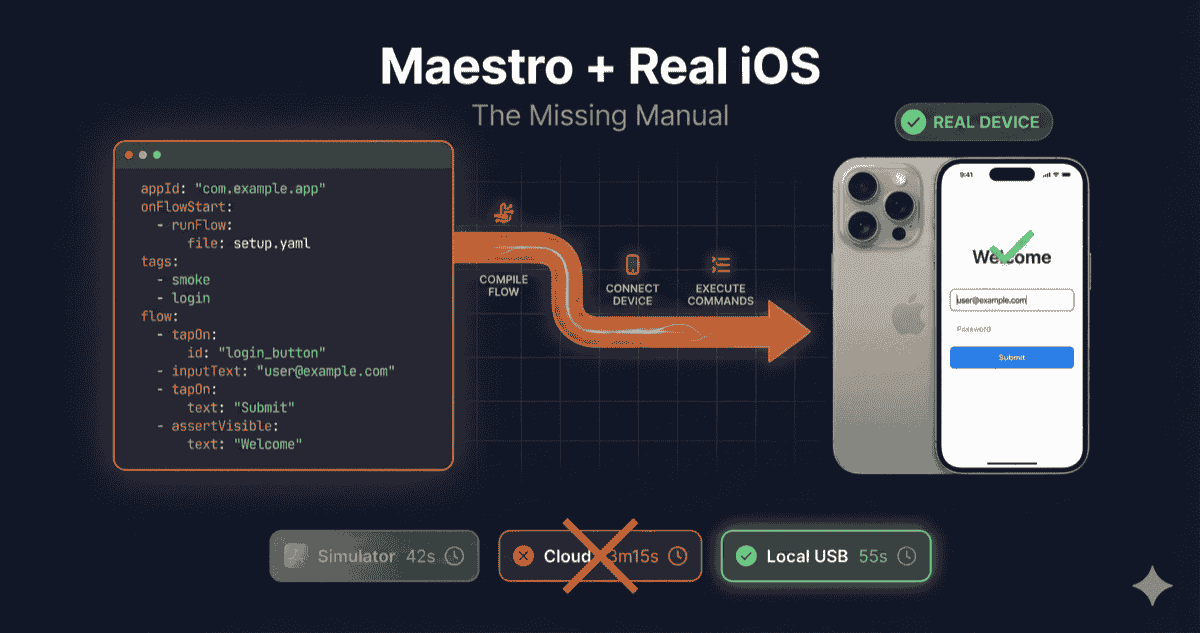
Maestro is the testing framework everyone wishes they’d discovered sooner. Write tests in YAML. No server setup. Built-in flakiness handling. Tests that take hours in Appium take minutes in Maestro.
Then you hit the wall: Maestro doesn’t support physical iOS devices.
Your tests pass on the iOS Simulator. But simulators aren’t iPhones. They don’t have the same GPU. They don’t throttle under thermal load. They don’t exhibit the memory pressure your users experience. They miss bugs.
This guide covers everything you need to know about running Maestro on real iOS devices—why it matters, what the limitations are, and how to do it today without waiting for official support.
Why Maestro Exists
Before we solve the iOS device problem, let’s understand why Maestro is worth the effort.
Mobile UI testing has historically been painful. Appium requires a server, driver management, explicit waits everywhere, and tests that break when you look at them wrong. Espresso and XCUITest are platform-specific. Detox requires instrumenting your app. (For a thorough Maestro vs Appium comparison, see our dedicated guide.)
Maestro took a different approach:
Declarative YAML syntax. No programming required. Tests read like documentation:
appId: com.example.app
---
- launchApp
- tapOn: "Login"
- inputText: "[email protected]"
- tapOn: "Password"
- inputText: "secretpassword"
- tapOn: "Submit"
- assertVisible: "Welcome back"
Built-in tolerance for flakiness. Mobile UIs are unstable. Animations delay rendering. Network requests take variable time. Maestro automatically retries failed interactions and waits for elements without explicit sleep() calls.
Instant execution. Tests are interpreted, not compiled. Change a YAML file and run immediately. Hot-reloading lets you iterate in real-time.
Cross-platform support. Same YAML syntax for Android, iOS, React Native, and Flutter. Write once, run on both platforms.
The result: teams report writing stable tests in minutes instead of hours. Wahed Invest reduced their test creation time from hours to under 10 minutes per flow.
The iOS Device Gap
Here’s the problem nobody talks about until they hit it:
| Platform | Emulators/Simulators | Physical Devices |
|---|---|---|
| Android | ✅ Full support | ✅ Full support |
| iOS | ✅ Full support | ❌ Not supported |
Maestro has supported Android physical devices since launch. iOS devices? The most requested feature since January 2023. Three years of GitHub issues. Official support is “coming sometime next year.”
This matters because simulators and real devices are not the same thing.
The Simulator Trap: Why Cloud Devices Fail
Before diving into the solution, you need to understand why Maestro struggles with real iOS devices—especially in the cloud.
Maestro works differently than Appium:
- Appium sends a command (
click) and waits for a driver response - Maestro actively polls the view hierarchy and performs visual diffing to “see” the screen state
On a local Simulator, this polling is instant. The screen buffer is in shared memory on your Mac.
On a real device over USB, pulling the view hierarchy 20 times per second is heavier—but still fast (~5ms per poll).
On a cloud device (BrowserStack, LambdaTest, Sauce Labs), it’s disastrous.
If you have 300ms network latency, Maestro’s polling loop slows to a crawl. Every visibility check, every tap confirmation, every scroll verification—all waiting on network round trips.
The Physics Problem: Maestro is chatty. Cloud is laggy. They don’t mix.
Here’s what we measured on a standard “Login → Scroll → Checkout” flow (50 steps):
| Environment | Time | Stability | Verdict |
|---|---|---|---|
| Local Simulator | 42s | High | Great for dev |
| Cloud Real Device | 3m 15s | Low | Unusable (timeouts) |
| Local Real Device (USB) | 55s | High | Production ready |
The cloud device suffered from the Double Hop problem: Maestro polls the screen state → sends request over the internet → waits 300ms → gets a frame → processes → repeat. Twenty times per second becomes two times per second.
Local USB? The poll takes 5ms. Maestro stays snappy.
Bottom line: Maestro was designed for local speed. Don’t break it by moving it to the cloud.
Why Simulators Aren’t Enough
The iOS Simulator is a virtualized software environment running on your Mac. It mimics iOS behavior but doesn’t replicate actual hardware. Here’s what it misses:
Hardware Differences
GPU Rendering: Simulators use your Mac’s GPU. Real iPhones have different GPUs (A-series chips) with different rendering characteristics. Animations that look smooth in the simulator may stutter on older devices.
Memory Constraints: Your Mac has 16-64GB of RAM. An iPhone has 4-6GB. Memory pressure behaves completely differently. Apps that work fine in the simulator crash on real devices under load.
Thermal Throttling: iPhones thermal-throttle under sustained load. The simulator doesn’t. Performance tests on simulators are meaningless for understanding real-world behavior.
Touch Response: Simulators convert mouse clicks to touch events. Real capacitive touchscreens have different latency characteristics and multi-touch behavior.
Behavior Differences
Jetsam (Memory Pressure): iOS aggressively kills apps that use too much memory. This is called a “Jetsam event.” Simulators running on 16GB Macs almost never trigger this. Real iPhones (4-6GB RAM shared across all apps) trigger it constantly. If your app crashes in production but not in testing, this is often why.
Push Notifications: Simulators can’t receive real push notifications. You can simulate local notifications, but remote push (APNs) requires a physical device.
Camera/Sensors: No camera, no accelerometer, no gyroscope, no barometer. Any feature depending on hardware sensors is untestable. If your app scans QR codes or uses FaceID, you need real hardware.
Network Conditions: Simulators use your Mac’s network. Real devices experience cellular handoffs, signal degradation, and carrier-specific behavior.
Background App Behavior: iOS manages background apps aggressively on real devices. Simulators don’t accurately replicate app suspension and termination.
The Bug Gap
Studies and practitioner experience consistently show that a significant percentage of mobile bugs only reproduce on physical hardware:
- Device-specific rendering issues
- Memory-related crashes
- Performance degradation under thermal throttling
- Touch gesture timing issues
- Hardware-dependent feature failures
One QA engineer put it simply: “I’ve seen tests pass flawlessly on emulator and simulator, but fail on a specific model of a real device.”
Testing only on simulators is like testing a web app only in Chrome on a fast MacBook. It works—until your users report bugs you can’t reproduce.
The Current Landscape (December 2025)
If you want to run Maestro tests on real iOS devices today, you have three options:
Option 1: Cloud Device Farms
Services like BrowserStack and LambdaTest offer Maestro integration. You upload your IPA and YAML flows to their infrastructure. They run tests on their physical devices and return results.
Pros:
- Works today
- Access to many device models
- No hardware to manage
Cons:
- Your binary uploads to their servers (security concern)
- Test data leaves your network
- $250+/device/month at scale
- Latency adds up (tests run slower)
- You don’t control the environment
Option 2: Wait for Official Support
The Maestro team has acknowledged iOS device support is coming. PRs have been merged laying the groundwork. But “sometime next year” isn’t a shipping feature.
Pros:
- Official, supported solution
- Will integrate cleanly with Maestro Cloud
Cons:
- Not available today
- Timeline uncertain
Option 3: Self-Hosted with maestro-ios-device
We built maestro-ios-device to solve this problem now. It’s a bridge that connects Maestro to physical iOS devices you own.
Pros:
- Works today
- Your devices, your network
- No binary upload required
- Free and open source
Cons:
- Requires Mac + Xcode
- Some commands have limited support (Apple restrictions)
- Unofficial (not supported by mobile.dev)
How Maestro’s iOS Driver Works
To understand the solution, you need to understand the problem.
Maestro’s architecture separates two concerns:
- Test Logic: The YAML interpreter that reads your flows and decides what actions to take
- Device Driver: The component that communicates with the device to execute actions
For Android, Maestro talks directly to ADB (Android Debug Bridge). ADB works the same for emulators and physical devices. Easy.
For iOS, Maestro originally used Facebook’s IDB (iOS Development Bridge). IDB worked for simulators but had problems:
- UITabBar elements were completely invisible to IDB
- Intermittent gRPC crashes
- Missing view hierarchy information
In Maestro 1.18.0, they rebuilt the iOS driver using XCUITest as the underlying API layer. They deploy an XCUITest runner to the simulator that starts an HTTP server. Maestro communicates with this server to get view hierarchies and execute taps.
The key insight: the XCUITest-based driver can work on physical devices too. Apple allows deploying XCUITest runners to devices—you just need proper code signing.
The infrastructure existed. The last mile was missing.
Setting Up Real iOS Device Testing
Here’s how to run Maestro on physical iPhones today.
Prerequisites
- macOS with Xcode installed (XCUITest requires Xcode toolchain)
- Apple Developer account (free tier works for personal devices)
- iOS device with Developer Mode enabled
- Maestro 2.0.9 or 2.0.10 installed
⚠️ CI/CD Warning: Free Apple Developer accounts create provisioning profiles that expire every 7 days. Your Monday morning CI run will fail if you signed the XCTest driver on the previous Monday. For production device labs, use a paid Apple Developer Program account ($99/year)—certificates last 1 year instead of 7 days.
Step 1: Enable Developer Mode on Your iPhone
On iOS 16+:
- Settings → Privacy & Security → Developer Mode
- Toggle on and restart
- After restart, confirm enabling Developer Mode
Disable Auto-Lock (Critical for CI):
- Settings → Display & Brightness → Auto-Lock → Never
- If “Never” is hidden, disable Low Power Mode first (Settings → Battery)
💡 Why this matters: Real iPhones lock themselves. If a device auto-locks over the weekend, your Monday morning regression run fails with “device not responding.” Simulators don’t have this problem—real devices do.
Step 2: Trust Your Developer Certificate
Connect your iPhone to your Mac via USB. In Xcode:
- Window → Devices and Simulators
- Select your device
- If prompted, trust the computer on the device
On your iPhone:
- Settings → General → VPN & Device Management
- Trust your developer certificate
Step 3: Install maestro-ios-device
curl -fsSL https://raw.githubusercontent.com/devicelab-dev/maestro-ios-device/main/setup.sh | bash
This installs the bridge tool and patches your local Maestro installation to support real devices.
Step 4: Find Your Device UDID and Team ID
Device UDID:
xcrun xctrace list devices
# Or
system_profiler SPUSBDataType | grep -A 11 "iPhone"
Team ID:
Open Xcode → Preferences → Accounts → Select your Apple ID → View your Team ID
Step 5: Start the Device Bridge
maestro-ios-device --team-id YOUR_TEAM_ID --device YOUR_DEVICE_UDID
This builds and deploys the XCTest driver to your physical device. You’ll see output indicating the HTTP server is running.
Step 6: Run Your Tests
In a new terminal:
maestro --driver-host-port 6001 --device YOUR_DEVICE_UDID --app-file /path/to/your/app.ipa test flow.yaml
Note: The --app-file flag is required for real device testing. Maestro needs the IPA to install the app.
Your existing YAML flows work unchanged:
appId: com.example.app
---
- launchApp
- tapOn: "Login"
- inputText: "[email protected]"
- tapOn: "Submit"
- assertVisible: "Welcome"
Parallel Testing on Multiple Devices
One device is good. Multiple devices running in parallel is better.
The original Maestro codebase had hardcoded port limitations preventing multi-device iOS testing. We removed them.
Terminal 1:
maestro-ios-device --team-id ABC123 --device IPHONE_12_UDID --driver-host-port 6001
Terminal 2:
maestro-ios-device --team-id ABC123 --device IPHONE_15_UDID --driver-host-port 6002
Now run your test suite split across devices:
# Run login tests on iPhone 12
maestro --driver-host-port 6001 --device IPHONE_12_UDID --app-file app.ipa test flows/login/

# Run checkout tests on iPhone 15
maestro --driver-host-port 6002 --device IPHONE_15_UDID --app-file app.ipa test flows/checkout/
Cut your CI time in half. Or thirds. Or quarters.
CI/CD Integration
The real power comes from automation. Here’s how to integrate with GitHub Actions.
Architecture
┌─────────────────────────────────────────────────────────────┐
│                    YOUR INFRASTRUCTURE                       │
│                                                             │
│  ┌─────────────┐                      ┌─────────────┐       │
│  │  GitHub     │   Self-Hosted        │  Mac Mini   │       │
│  │  Actions    │──────Runner────────►│  + iPhones  │       │
│  │  Workflow   │                      │  + Maestro  │       │
│  └─────────────┘                      └─────────────┘       │
│                                                             │
│  Tests run locally. Binary never leaves your network.       │
└─────────────────────────────────────────────────────────────┘
GitHub Actions Workflow
name: iOS E2E Tests

on:
  push:
    branches: [main]
  pull_request:
    branches: [main]

jobs:
  maestro-ios:
    runs-on: self-hosted  # Your Mac Mini with devices attached

    steps:
      - uses: actions/checkout@v4

      - name: Build iOS App
        run: |
          xcodebuild -workspace App.xcworkspace \
            -scheme App \
            -configuration Debug \
            -destination generic/platform=iOS \
            -archivePath build/App.xcarchive archive

          xcodebuild -exportArchive \
            -archivePath build/App.xcarchive \
            -exportPath build \
            -exportOptionsPlist ExportOptions.plist

      - name: Start Device Bridge
        run: |
          maestro-ios-device \
            --team-id ${{ secrets.APPLE_TEAM_ID }} \
            --device ${{ secrets.IPHONE_UDID }} \
            --driver-host-port 6001 &
          sleep 10  # Wait for driver to initialize

      - name: Run Maestro Tests
        run: |
          maestro --driver-host-port 6001 \
            --device ${{ secrets.IPHONE_UDID }} \
            --app-file build/App.ipa \
            test maestro/

      - name: Upload Test Results
        if: always()
        uses: actions/upload-artifact@v4
        with:
          name: maestro-results
          path: ~/.maestro/tests/
Self-Hosted Runner Setup
Your Mac Mini needs:
- GitHub Actions runner installed and registered
- Xcode with valid signing certificates
- maestro-ios-device installed
- Physical iPhone(s) connected via USB
- Devices trusted and Developer Mode enabled
See our certified hardware list for recommended Mac Mini configurations.
Command Reference and Limitations
Not every Maestro command works identically on real devices. Some limitations are ours, most are Apple’s.
Fully Supported Commands
| Command | Status | Notes |
|---|---|---|
launchApp |
✅ | Works as expected |
tapOn |
✅ | All selector types supported |
doubleTapOn |
✅ | — |
longPressOn |
✅ | — |
inputText |
✅ | — |
eraseText |
✅ | — |
assertVisible |
✅ | — |
assertNotVisible |
✅ | — |
scroll |
✅ | — |
scrollUntilVisible |
✅ | — |
swipe |
✅ | — |
back |
✅ | — |
hideKeyboard |
✅ | — |
takeScreenshot |
✅ | — |
startRecording |
✅ | — |
stopRecording |
✅ | — |
runFlow |
✅ | Nested flows work |
runScript |
✅ | JavaScript execution works |
Commands with Caveats
| Command | Status | Notes |
|---|---|---|
clearState |
⚠️ | Works via app reinstall. Requires --app-file flag |
setLocation |
⚠️ | Requires additional Xcode setup for simulated location |
openLink |
⚠️ | Deep links work; universal links may need configuration |
Unsupported Commands
| Command | Status | Notes |
|---|---|---|
addMedia |
❌ | iOS platform restriction |
setAirplaneMode |
❌ | Requires MDM or physical button |
toggleAirplaneMode |
❌ | Same as above |
Maestro vs. Appium: When to Use Each
Maestro isn’t a complete Appium replacement. Here’s how to think about it:
Choose Maestro When:
- Speed matters. Maestro executes flows 2x faster than Appium (12s vs 24s for equivalent tests).
- Your team has mixed technical skills. YAML is accessible to QA engineers without programming backgrounds.
- You’re testing user flows. Login, checkout, onboarding—Maestro excels at simulating real user journeys.
- Flakiness is killing you. Maestro’s built-in retry logic dramatically reduces false failures.
- You’re building in React Native or Flutter. Cross-platform support with identical syntax.
Choose Appium When:
- You need deep customization. Complex conditional logic, data-driven tests with external sources, custom wait strategies.
- You’re testing edge cases. Appium’s flexibility handles scenarios Maestro’s DSL can’t express.
- You have existing Appium infrastructure. Migration cost may outweigh benefits.
- You need Windows/macOS app testing. Appium supports desktop platforms.
The Hybrid Approach
Many teams use both:
- Maestro for core regression flows. Fast, reliable, easy to maintain.
- Appium for edge cases. Complex scenarios that need programmatic control.
This gives you speed where it matters and flexibility when you need it.
Real-World Performance Numbers
From teams running Maestro on real iOS devices with DeviceLab:
| Metric | Simulator | Real Device (Cloud) | Real Device (Self-Hosted) |
|---|---|---|---|
| Test execution time | Baseline | +40-60% | +5-10% |
| Network overhead | None | 150-400ms/command | <5ms |
| Binary upload | None | Required | None |
| Flakiness rate | Lower | Higher (network) | Similar to simulator |
| Bug detection | Partial | Full | Full |
Self-hosted real device testing gives you the bug detection benefits of physical hardware without the latency penalty of cloud infrastructure.
Troubleshooting Common Issues
“Failed to reach XCUITest Server”
The XCTest driver isn’t running or can’t communicate.
# Check if the driver process is running
ps aux | grep XCUITest

# Check the port is listening
lsof -i :6001

# Restart the device bridge
killall maestro-ios-device
maestro-ios-device --team-id YOUR_TEAM_ID --device YOUR_UDID
“Device not found”
Maestro can’t see your physical device.
# Verify device is connected
xcrun xctrace list devices

# Check Developer Mode is enabled
# Settings → Privacy & Security → Developer Mode

# Check device is trusted
# Settings → General → VPN & Device Management
“Code signing error”
Your provisioning profile or certificate is invalid.
- Open Xcode → Preferences → Accounts
- Refresh certificates
- Ensure your Team ID matches the one in maestro-ios-device command
- For enterprise distribution, ensure the provisioning profile includes your test device UDID
Tests pass on simulator but fail on device
This is usually a timing issue or device-specific behavior.
# Add explicit waits for device-specific delays
- extendedWaitUntil:
    visible: "Welcome"
    timeout: 10000
Or the element identifiers differ between simulator and device (rare, but happens with dynamic content).
Keyboard blocking elements
On real devices, the software keyboard often covers input fields, causing tapOn visibility checks to fail. Simulators handle keyboard dismissal more gracefully.
Fixes:
- Add
hideKeyboardbefore tapping elements that might be covered:
- inputText: "[email protected]"
- hideKeyboard
- tapOn: "Submit"  # Now visible
-
If using a Mac with the device connected, ensure “Connect Hardware Keyboard” is toggled OFF in the device’s settings (Settings → General → Keyboard → Hardware Keyboard). A connected hardware keyboard can interfere with soft keyboard behavior.
-
Design your test flows to scroll the target element into view before tapping:
- scrollUntilVisible:
    element: "Submit"
    direction: DOWN
- tapOn: "Submit"
Security Considerations
Running Maestro on your own devices eliminates several security concerns inherent in cloud device farms:
Binary Sovereignty: Your IPA never leaves your network. Cloud farms require uploading your binary to their storage—including all your bundled API keys, feature flags, and business logic.
Test Data Isolation: Credentials, test user data, and environment variables stay on your infrastructure. No third-party logs contain your staging API endpoints.
Compliance Simplification: For HIPAA, SOC2, or PCI-DSS regulated teams, self-hosted testing means one fewer third-party data processor to audit.
See our Zero Trust Architecture post for the technical details of how DeviceLab keeps your data on your infrastructure.
What’s Next for Maestro iOS Support
The Maestro team has been laying groundwork:
- Infrastructure PRs merged for device support
- XCUITest driver capable of device communication
- Community PRs (including ours) submitted
Official support is coming. When it ships, we recommend migrating to it. Until then, maestro-ios-device bridges the gap.
Getting Started Checklist
Ready to run Maestro on real iOS devices? Here’s your checklist:
- Mac with Xcode installed
- Apple Developer account (free or paid)
- iPhone with iOS 16+ and Developer Mode enabled
- Device trusted in Xcode
- maestro-ios-device installed
- Team ID and Device UDID noted
- Test IPA built and signed
Then:
# Start the bridge
maestro-ios-device --team-id YOUR_TEAM_ID --device YOUR_UDID

# Run your tests
maestro --driver-host-port 6001 --device YOUR_UDID --app-file app.ipa test flows/
Your simulator tests now run on real hardware. Same YAML. Better coverage. Actual iPhone behavior.
Frequently Asked Questions
Does Maestro support real iOS devices?
Not officially. As of December 2025, Maestro only supports iOS Simulators. Physical iPhone support is the most requested feature since January 2023. DeviceLab’s maestro-ios-device tool enables real device testing today.
Why can’t I just test on the iOS Simulator?
Simulators miss device-specific bugs: gesture responsiveness, memory constraints, GPU rendering differences, thermal throttling, and hardware sensor behavior. Studies show a significant percentage of mobile bugs only reproduce on physical devices.
Is Maestro faster than Appium?
Yes. Benchmarks show Maestro executes flows nearly twice as fast—a test taking 24 seconds on Appium completes in ~12 seconds on Maestro. This is due to interpreted execution (no compilation) and built-in flakiness handling.
Can I run Maestro on real iPhones in CI/CD?
Yes, using self-hosted runners connected to physical devices. DeviceLab provides the orchestration layer. Your GitHub Actions workflow calls maestro-ios-device, which communicates with your Mac Mini running the XCTest driver.
What’s the difference between Maestro Cloud and running on my own devices?
Maestro Cloud runs tests on mobile.dev’s infrastructure—your binary uploads to their servers. Self-hosted testing keeps everything on your network: your devices, your data, zero upload required.
Will my existing Maestro tests work on real devices?
Yes. If your YAML flows run on the iOS Simulator, they’ll run on physical devices with no changes using maestro-ios-device.
Resources
- maestro-ios-device: github.com/devicelab-dev/maestro-ios-device
- Upstream PR: github.com/mobile-dev-inc/Maestro/pull/2856
- Maestro Documentation: docs.maestro.dev
- DeviceLab Hardware Guide: /certified-hardware-list
See how DeviceLab compares to the giants: vs BrowserStack | vs Sauce Labs | Read the Cost Analysis →
Your tests deserve real devices. Set up your lab or explore the architecture.