
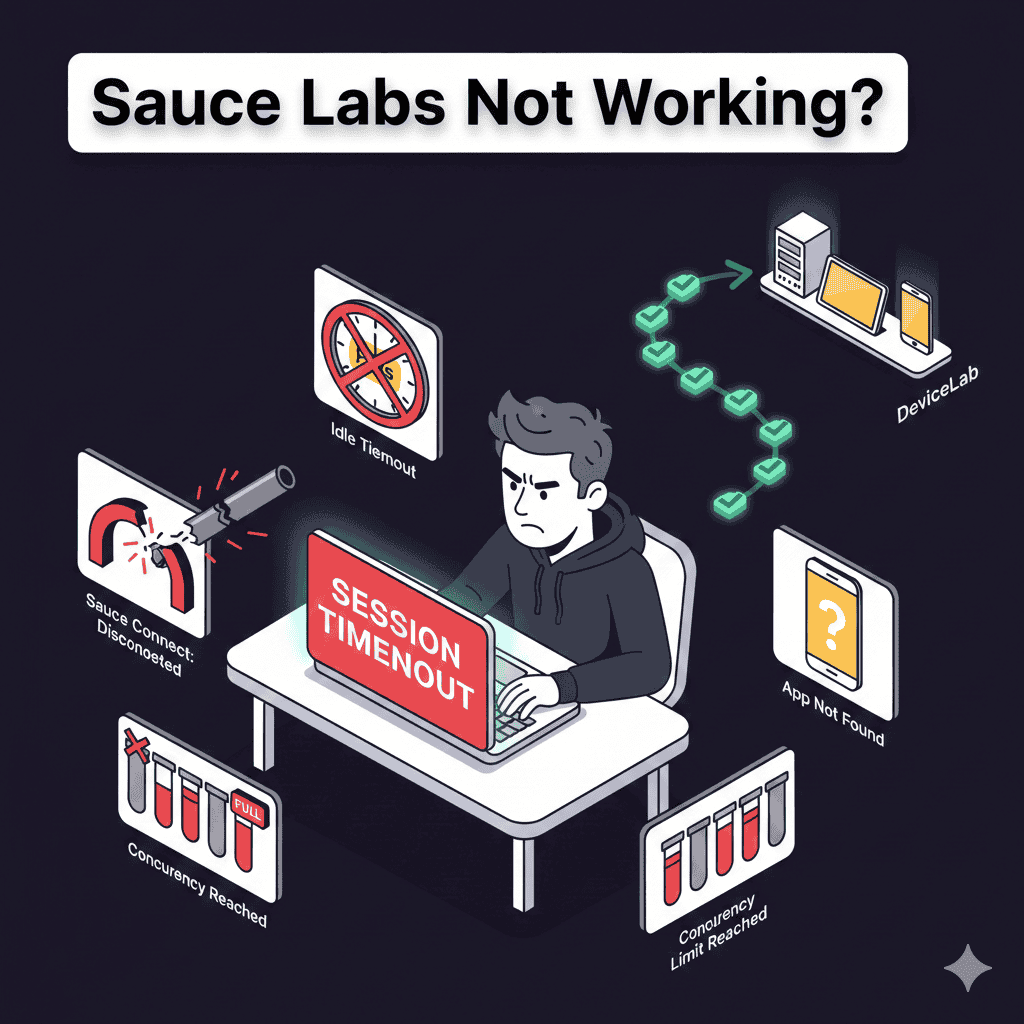
Sauce Labs Not Working? Common Issues & Fixes
Your tests work locally. You’ve configured Sauce Labs. But something’s broken.
Maybe tests timeout before finishing. Maybe Sauce Connect drops mid-run. Maybe you’re staring at cryptic error messages that don’t explain what went wrong.
This guide covers the most common Sauce Labs issues and how to actually fix them—based on official documentation, user reports, and painful debugging experience.
Quick Diagnosis
Before diving into specific issues, identify your problem category:
| Symptom | Likely Cause | Jump To |
|---|---|---|
| “Session not created” | Capability or auth error | Session Errors |
| Test hangs, then times out | Timeout configuration | Timeout Issues |
| “Sauce Connect” errors | Tunnel problems | Sauce Connect Issues |
| Tests pass locally, fail on Sauce | Environment differences | Environment Mismatches |
| Extremely slow execution | Latency or tunnel overhead | Performance Issues |
| “App not found” | Upload expiry or path | App Upload Issues |
For proper Sauce Labs setup and configuration best practices, see our setup guide.
Session Not Created Errors
Invalid Credentials
Error:
OpenQA.Selenium.WebDriverException: Unexpected error. Invalid Credentials.
Cause: Wrong username or access key.
Fix:
- Verify credentials at saucelabs.com/account
- Check environment variables are set correctly:
echo $SAUCE_USERNAME
echo $SAUCE_ACCESS_KEY
- Ensure no trailing whitespace in credentials
- If using a subaccount, use that account’s specific key
Unsupported Platform
Error:
The requested combination of browser, version, and OS is not supported
Cause: Invalid browser/OS/version combination.
Fix:
- Check Sauce Labs Platform Configurator for valid combinations
- Common mistakes:
- Requesting Chrome 120 on Windows 7 (Chrome dropped Win7 support)
- Mixing mobile and desktop capabilities
- Using outdated browser versions no longer available
Example fix:
# Wrong - Chrome 120 not available on Windows 7
caps = {
    "browserName": "chrome",
    "browserVersion": "120",
    "platformName": "Windows 7"  # Not supported
}

# Correct
caps = {
    "browserName": "chrome",
    "browserVersion": "120",
    "platformName": "Windows 11"
}
Appium Version Mismatch
Error:
Could not start a new session. Appium version not supported.
Cause: Requesting an Appium version Sauce Labs doesn’t support.
Fix:
Sauce Labs supports specific Appium versions. Check current support:
# In sauce:options, specify a supported version
sauceOptions = {
    "appiumVersion": "2.0"  # Or "latest"
}
Note: Appium 1.x is no longer maintained and may cause issues with Android 13+ or iOS 16+. Migrate to Appium 2.x.
W3C vs JSONWP Capability Format
Error:
Invalid capabilities / Capability not recognized
Cause: Mixing old (JSONWP) and new (W3C) capability formats.
Fix:
Use W3C format with sauce:options for vendor-specific settings:
# W3C Format (correct)
capabilities = {
    "browserName": "chrome",
    "browserVersion": "latest",
    "platformName": "Windows 11",
    "sauce:options": {
        "username": os.environ["SAUCE_USERNAME"],
        "accessKey": os.environ["SAUCE_ACCESS_KEY"],
        "name": "My Test"
    }
}

# Old JSONWP format (may cause issues)
capabilities = {
    "browserName": "chrome",
    "version": "latest",  # Should be browserVersion
    "platform": "Windows 11",  # Should be platformName
    "username": "...",  # Should be in sauce:options
}
Timeout Issues
Sauce Labs has three timeout types. Hitting any of them kills your test.
Idle Timeout (90 seconds)
Error:
Test did not see a new command for 90 seconds. Timing out.
Cause: No commands sent to browser for 90 seconds.
Common triggers:
- Long database queries between UI actions
- Waiting for external API responses
- Sleep statements in tests
Fix:
sauceOptions = {
    "idleTimeout": 180  # Extend to 180 seconds (max: 1000)
}
Or send a keep-alive command:
# Insert between long operations
driver.execute_script("/* keep-alive */")
Command Timeout (5 minutes)
Error:
Sauce Labs didn't receive a response from Selenium in more than 5 minutes
Cause: A single command (like page load) took over 5 minutes.
Fix:
sauceOptions = {
    "commandTimeout": 600  # Extend to 10 minutes (max: 600)
}
Better fix: Optimize your app or test. A 5+ minute page load indicates a problem.
Max Duration (30 minutes)
Error:
Test exceeded maximum duration after 1800 seconds
Cause: Total test time exceeded 30 minutes.
Fix:
sauceOptions = {
    "maxDuration": 3600  # Extend to 1 hour (max: 10800)
}
Better fix: Split long test suites into smaller runs.
Timeout Quick Reference
| Timeout | Default | Max | Capability |
|---|---|---|---|
| Idle | 90s | 1000s | idleTimeout |
| Command | 300s | 600s | commandTimeout |
| Max Duration | 1800s | 10800s | maxDuration |
Sauce Connect Issues
Sauce Connect creates a tunnel between your network and Sauce Labs. It’s essential for testing internal apps—and a common source of problems.
Tunnel Won’t Start
Error:
Sauce Connect could not establish a connection
Fixes:
- Check firewall: Port 443 must be open outbound to
*.saucelabs.com
# Test connectivity
curl -v https://saucelabs.com
- Check proxy settings:
# If behind corporate proxy
sc run --proxy your-proxy:8080 --proxy-userpwd user:pass
- Verify credentials:
sc run --username $SAUCE_USERNAME --access-key $SAUCE_ACCESS_KEY
Tunnel Drops During Tests
Symptoms:
- Tests fail randomly with network errors
- “Remote tunnel VM has been terminated”
- Connection timeouts mid-test
Causes and fixes:
- Insufficient resources: Sauce Connect needs adequate CPU/memory
# Minimum recommended for production
# 4 CPU cores, 4GB RAM
- Tunnel overload: Too much traffic through one tunnel
# Use tunnel pools for high concurrency
sc run --tunnel-pool --tunnel-name my-pool
- Network instability: Flaky corporate network
# Enable verbose logging to diagnose
sc run --verbose
Sauce Connect Slow Performance
From Sauce Labs’ own documentation:
“If you’re using Sauce Connect, the additional network hops required to access external resources have the potential to slow test execution dramatically.”
Fix: Route only necessary traffic through the tunnel
# Only tunnel traffic to your internal domains
sc run --tunnel-domains "*.internal.company.com,staging.myapp.com"

# Send public resources directly (not through tunnel)
sc run --direct-domains "*.googleapis.com,*.cloudflare.com"
This dramatically reduces tunnel overhead. For a deep dive into tunnel performance issues, see Sauce Connect TCP issues explained.
Test Can’t Reach Internal Site
Error:
Site not reachable / Connection refused
Fixes:
- Verify tunnel name matches capability:
sauceOptions = {
    "tunnelName": "my-tunnel"  # Must match --tunnel-name in SC
}
- Check SC can reach your site:
# On the SC host machine
curl -v http://your-internal-site.com
- Verify region matches:
# US data center
driver = webdriver.Remote(
    "https://ondemand.us-west-1.saucelabs.com/wd/hub",
    capabilities
)

# EU data center
driver = webdriver.Remote(
    "https://ondemand.eu-central-1.saucelabs.com/wd/hub",
    capabilities
)
Tunnel must be in the same region as tests.
Tests Pass Locally, Fail on Sauce
The most frustrating category. Your tests work perfectly on your machine but fail on Sauce Labs.
Timing/Race Conditions
Symptom: Element not found, stale element, click intercepted
Cause: Cloud execution is slower. Elements aren’t ready when expected.
Fix:
# Add explicit waits instead of implicit/sleep
from selenium.webdriver.support.ui import WebDriverWait
from selenium.webdriver.support import expected_conditions as EC

wait = WebDriverWait(driver, 20)  # Longer timeout for cloud
element = wait.until(EC.element_to_be_clickable((By.ID, "submit")))
element.click()
Resolution/Viewport Differences
Symptom: Elements hidden, layout broken, clicks miss targets
Cause: Different screen resolution on Sauce Labs VMs.
Fix:
sauceOptions = {
    "screenResolution": "1920x1080"  # Match your local resolution
}

# Or set viewport in test
driver.set_window_size(1920, 1080)
Browser Configuration Differences
Symptom: Features work locally but fail on Sauce
Cause: Different browser settings, extensions, or profiles
Fix:
# Explicitly set browser options
chrome_options = webdriver.ChromeOptions()
chrome_options.add_argument("--disable-popup-blocking")
chrome_options.add_argument("--disable-notifications")

capabilities = {
    "browserName": "chrome",
    "goog:chromeOptions": chrome_options.to_capabilities()["goog:chromeOptions"],
    "sauce:options": {...}
}
SSL/Certificate Issues
Symptom: HTTPS pages fail to load, certificate errors
Cause: Internal sites with self-signed certificates
Fix with Sauce Connect:
# Accept self-signed certificates
sc run --no-ssl-bump-domains "*.internal.company.com"
Or in capabilities:
chrome_options.add_argument("--ignore-certificate-errors")
Performance Issues
Users consistently report Sauce Labs runs slower than local testing.
Why It’s Slow
From actual user reviews on G2:
“Running extensive test suites on real devices can sometimes be slower than local environments, especially when dealing with large-scale parallel testing.”
From Capterra reviews:
“It takes a very long time to render each device type which can slow down QA.”
Contributing factors:
- Network latency to Oregon (US) or Frankfurt (EU)
- Tunnel overhead if using Sauce Connect
- Shared infrastructure during peak hours
- Session setup/teardown time
Optimization Strategies
- Minimize tunnel traffic:
sc run --tunnel-domains "only-internal-domains.com"
-
Use parallel execution: Run more tests simultaneously to offset slowdown
-
Choose closer data center: EU for European teams, US West for Americas
-
Avoid peak hours: Early morning or evening may have less contention
-
Optimize tests: Cloud testing amplifies inefficiencies
App Upload Issues
App Not Found
Error:
Unable to find application: sauce-storage:my-app.apk
Causes:
- App URL expired (30-day limit)
- Wrong storage reference
- Wrong data center
Fix:
- Re-upload the app:
curl -u "$SAUCE_USERNAME:$SAUCE_ACCESS_KEY" \
  -X POST "https://api.us-west-1.saucelabs.com/v1/storage/upload" \
  -F "payload=@/path/to/app.apk"
- Use the new app ID in capabilities:
capabilities = {
    "appium:app": "storage:filename=my-app.apk"
}
Upload Fails
Error:
Upload request failed (400)
Fixes:
- Check file size: Large files may timeout
- Verify file format:
.apkfor Android,.ipaor.app.zipfor iOS - Check account storage limits
# Check current storage usage
curl -u "$SAUCE_USERNAME:$SAUCE_ACCESS_KEY" \
  "https://api.us-west-1.saucelabs.com/v1/storage/files"
Queue and Concurrency Issues
Tests Stuck in Queue
Error:
New session request was cancelled before a Sauce Labs virtual machine was found
Cause: All your concurrency slots are in use.
Fix:
- Check your concurrency limit in account settings
- Reduce parallel test count
- Tests queued too long (150+ in queue) get rejected
Hitting Concurrency Limits
Symptom: Tests queue indefinitely, then fail
Understanding the math:
- 5 concurrent slots + 20 tests = 15 queued
- Queue limit = concurrency + 150
- Tests wait up to several minutes, then timeout
Fix: Either upgrade plan or reduce parallelism in CI/CD:
# GitHub Actions example
jobs:
  test:
    strategy:
      max-parallel: 5  # Match your Sauce Labs concurrency
Getting Help
When Sauce Labs support is needed:
- Collect job IDs: Every test has a unique ID in the URL
- Enable verbose logging:
sauceOptions = {
    "extendedDebugging": True,
    "capturePerformance": True
}
-
Check status page: status.saucelabs.com
-
Contact support: Include job URLs, error messages, and capabilities used
When Sauce Labs Isn’t the Right Fit
Some issues aren’t fixable—they’re inherent to cloud testing:
- Latency: Cloud will always be slower than local
- Data exposure: Your app and test data go to Sauce Labs servers
- Cost at scale: Concurrency pricing multiplies quickly
- Tunnel complexity: Sauce Connect adds a failure point
For teams hitting these walls repeatedly, running tests on your own devices eliminates cloud-specific issues entirely. Same frameworks (Appium, Espresso, XCUITest), no tunnels, no latency, no data leaving your network. For compliance requirements, our cloud device lab security guide covers data exposure concerns in detail. Also see Sauce Labs alternatives and learn what you’re paying for with Sauce Labs pricing. Users on LambdaTest experience similar issues.
Summary: Quick Fix Reference
| Issue | Quick Fix |
|---|---|
| Invalid credentials | Verify at saucelabs.com/account |
| Unsupported platform | Use Platform Configurator |
| Idle timeout | idleTimeout: 180 |
| Command timeout | commandTimeout: 600 |
| Max duration | maxDuration: 3600 |
| Tunnel won’t start | Check port 443, proxy settings |
| Tunnel slow | Use --tunnel-domains |
| App not found | Re-upload (30-day expiry) |
| Tests queued | Reduce parallelism |
| Slow execution | Minimize tunnel traffic |
Frequently Asked Questions
Why is my Sauce Labs test timing out?
Sauce Labs has three timeout types: idle timeout (90 seconds between commands), command timeout (5 minutes per command), and max duration (30 minutes total). Increase these using idleTimeout, commandTimeout, and maxDuration capabilities.
Why does Sauce Connect keep disconnecting?
Common causes include corporate firewalls blocking port 443, insufficient system resources on the SC host, or network instability. Use –tunnel-domains to minimize traffic through the tunnel and ensure 4+ CPU cores for high-volume testing.
Why can’t Sauce Labs find my app?
App URLs expire after 30 days. Re-upload your app and update the sauce-storage reference. Also verify the app was uploaded to the correct data center (US or EU) matching your test configuration.
Why are my Sauce Labs tests so slow?
Cloud testing adds latency—tests that take 5 minutes locally may take 15+ minutes on Sauce Labs. Use –tunnel-domains and –direct-domains to route only necessary traffic through Sauce Connect.
What does ‘session not created’ mean in Sauce Labs?
This usually indicates invalid capabilities, unsupported browser/OS combinations, or authentication issues. Verify your username and access key, check that the platform exists in Sauce Labs’ supported list.
How do I fix ‘Test exceeded maximum duration’ error?
The default max duration is 30 minutes (1800 seconds). Add maxDuration capability to extend it up to 10800 seconds (3 hours). If tests legitimately need longer, split your test suite into smaller runs.
Tired of debugging cloud testing issues? DeviceLab runs your tests on your own devices—first device free, then $99/device/month. Same Appium code, zero cloud complexity.