
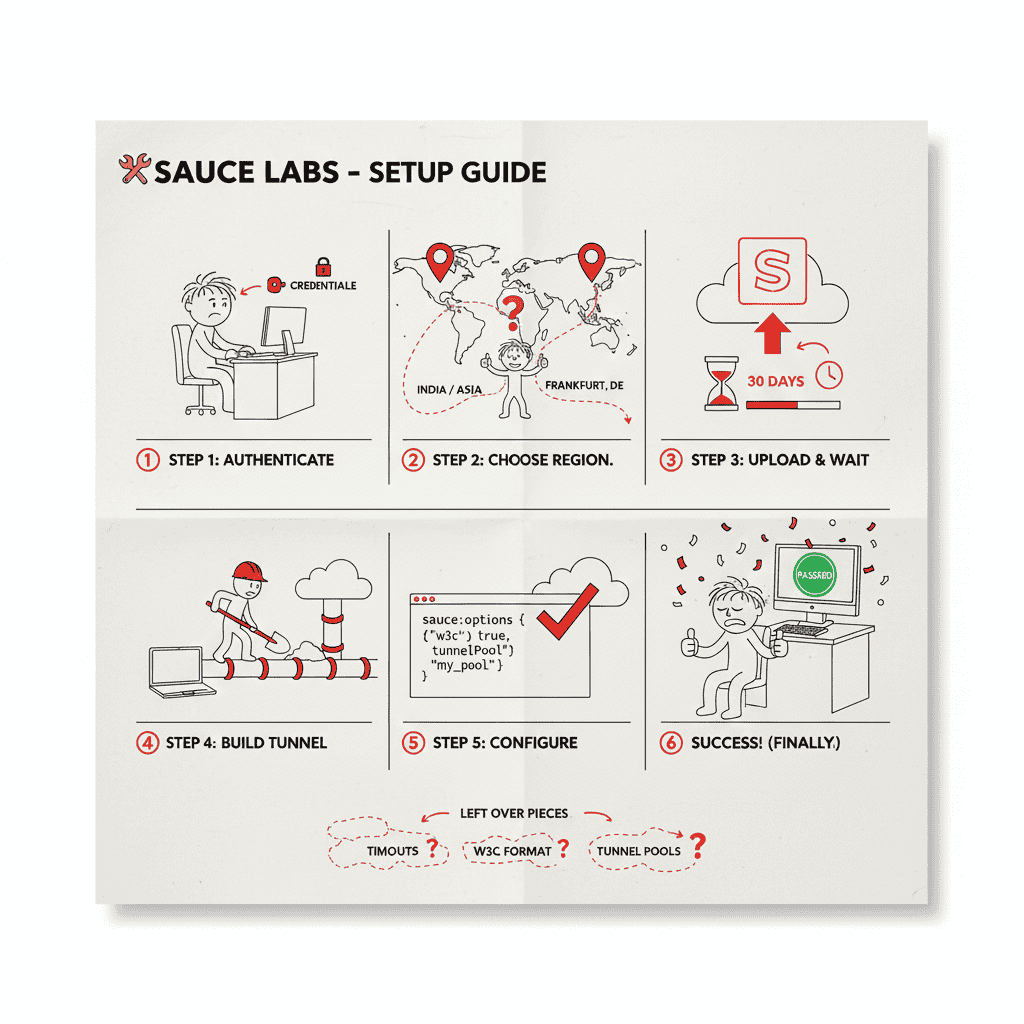
Sauce Labs offers cloud-based testing on real browsers and mobile devices. Getting started involves several steps: account setup, capability configuration, app uploads (for mobile), and potentially Sauce Connect for internal applications.
This guide walks through each step for both Selenium web testing and Appium mobile testing.
Prerequisites
See our Sauce Labs plans guide for pricing before signing up.
Before starting:
- A Sauce Labs account (free trial available)
- Your test framework installed locally (Selenium, Appium client)
- For mobile: Your app binary (.apk for Android, .ipa for iOS)
- For internal apps: Sauce Connect downloaded
Step 1: Get Your Credentials
- Log in to saucelabs.com
- Go to Account → User Settings
- Find your Username and Access Key
Store these securely—never commit them to version control:
# Set environment variables
export SAUCE_USERNAME="your-username"
export SAUCE_ACCESS_KEY="your-access-key"
Step 2: Choose Your Data Center
Sauce Labs has two data centers:
| Region | Hub URL | Best For |
|---|---|---|
| US West | ondemand.us-west-1.saucelabs.com |
Americas |
| EU Central | ondemand.eu-central-1.saucelabs.com |
Europe, Africa |
Important: If you’re outside US/EU, expect latency. Sauce Labs doesn’t have APAC data centers.
Selenium Web Testing Setup
Basic Configuration
from selenium import webdriver
import os

# Capabilities using W3C format
capabilities = {
    "browserName": "chrome",
    "browserVersion": "latest",
    "platformName": "Windows 11",
    "sauce:options": {
        "username": os.environ["SAUCE_USERNAME"],
        "accessKey": os.environ["SAUCE_ACCESS_KEY"],
        "name": "My First Test",
        "build": "build-123"
    }
}

# Connect to Sauce Labs
driver = webdriver.Remote(
    command_executor="https://ondemand.us-west-1.saucelabs.com/wd/hub",
    desired_capabilities=capabilities
)

# Run your test
driver.get("https://example.com")
assert "Example" in driver.title

# Always quit to end the session
driver.quit()
Available Browsers
| Browser | Versions | Platforms |
|---|---|---|
| Chrome | 75+ | Windows, macOS, Linux |
| Firefox | 60+ | Windows, macOS, Linux |
| Safari | 12+ | macOS only |
| Edge | 79+ | Windows, macOS |
Check the Platform Configurator for valid combinations.
Setting Screen Resolution
"sauce:options": {
    "screenResolution": "1920x1080"
}
Available resolutions vary by platform. Common options: 1024x768, 1280x1024, 1920x1080.
Appium Mobile Testing Setup
Mobile testing requires additional steps: uploading your app and configuring device capabilities.
Step A: Upload Your App
Apps must be uploaded to Sauce Labs storage before testing.
Using cURL:
# Android
curl -u "$SAUCE_USERNAME:$SAUCE_ACCESS_KEY" \
  -X POST "https://api.us-west-1.saucelabs.com/v1/storage/upload" \
  -F "payload=@/path/to/app.apk" \
  -F "name=my-app.apk"

# iOS
curl -u "$SAUCE_USERNAME:$SAUCE_ACCESS_KEY" \
  -X POST "https://api.us-west-1.saucelabs.com/v1/storage/upload" \
  -F "payload=@/path/to/app.ipa" \
  -F "name=my-app.ipa"
Response:
{
  "item": {
    "id": "abc123-def456",
    "name": "my-app.apk",
    "upload_timestamp": 1703500000
  }
}
Important: App uploads expire after 30 days. You’ll need to re-upload periodically.
Step B: Reference Your App
Use the storage ID in your capabilities:
# By storage ID
"appium:app": "storage:abc123-def456"

# Or by filename (uses most recent upload)
"appium:app": "storage:filename=my-app.apk"
Android Configuration
from appium import webdriver
import os

capabilities = {
    "platformName": "Android",
    "appium:deviceName": "Google Pixel 7",
    "appium:platformVersion": "13",
    "appium:automationName": "UiAutomator2",
    "appium:app": "storage:filename=my-app.apk",
    "sauce:options": {
        "username": os.environ["SAUCE_USERNAME"],
        "accessKey": os.environ["SAUCE_ACCESS_KEY"],
        "name": "Android Test",
        "build": "build-123",
        "appiumVersion": "2.0"
    }
}

driver = webdriver.Remote(
    command_executor="https://ondemand.us-west-1.saucelabs.com/wd/hub",
    desired_capabilities=capabilities
)
iOS Configuration
capabilities = {
    "platformName": "iOS",
    "appium:deviceName": "iPhone 14",
    "appium:platformVersion": "16",
    "appium:automationName": "XCUITest",
    "appium:app": "storage:filename=my-app.ipa",
    "sauce:options": {
        "username": os.environ["SAUCE_USERNAME"],
        "accessKey": os.environ["SAUCE_ACCESS_KEY"],
        "name": "iOS Test",
        "build": "build-123",
        "appiumVersion": "2.0"
    }
}

driver = webdriver.Remote(
    command_executor="https://ondemand.us-west-1.saucelabs.com/wd/hub",
    desired_capabilities=capabilities
)
Finding Device Names
Valid device names change as Sauce Labs updates their pool. Use the Platform Configurator or API:
# List available Android devices
curl -u "$SAUCE_USERNAME:$SAUCE_ACCESS_KEY" \
  "https://api.us-west-1.saucelabs.com/v1/rdc/devices/available"
Sauce Connect Setup
If your application isn’t publicly accessible, you need Sauce Connect to create a tunnel.
Download Sauce Connect
# macOS
brew install sauce-connect

# Linux
wget https://saucelabs.com/downloads/sauce-connect/5.0.0/sauce-connect-5.0.0_linux.x86_64.tar.gz
tar -xzf sauce-connect-*.tar.gz

# Windows
# Download from https://docs.saucelabs.com/secure-connections/sauce-connect-5/installation/
Start the Tunnel
sc run \
  --username $SAUCE_USERNAME \
  --access-key $SAUCE_ACCESS_KEY \
  --region us-west \
  --tunnel-name my-tunnel
Wait for: Sauce Connect is up, you may start your tests
Reference the Tunnel in Tests
"sauce:options": {
    "tunnelName": "my-tunnel"
}
Sauce Connect Best Practices
For Sauce Connect performance tips, see our TCP meltdown analysis.
1. Route only necessary traffic:
sc run \
  --tunnel-domains "*.internal.company.com,staging.myapp.com" \
  --direct-domains "*.googleapis.com,*.cloudflare.com"
2. Use tunnel pools for high concurrency:
sc run --tunnel-pool --tunnel-name shared-pool
3. Allocate sufficient resources:
Sauce Connect needs CPU and memory. For 100+ parallel tests, dedicate 4+ cores.
Configuration Reference
sauce:options Capabilities
| Capability | Description | Default |
|---|---|---|
name |
Test name (appears in dashboard) | — |
build |
Build identifier | — |
tags |
Array of tags for filtering | — |
idleTimeout |
Seconds between commands before timeout | 90 |
commandTimeout |
Seconds for single command | 300 |
maxDuration |
Max test duration in seconds | 1800 |
tunnelName |
Sauce Connect tunnel to use | — |
screenResolution |
Browser window size | — |
appiumVersion |
Appium version | latest |
Timeout Configuration
"sauce:options": {
    "idleTimeout": 180,      # 3 minutes between commands
    "commandTimeout": 600,   # 10 minutes per command
    "maxDuration": 3600      # 1 hour max total
}
CI/CD Integration
GitHub Actions
- name: Run Sauce Labs Tests
  env:
    SAUCE_USERNAME: ${{ secrets.SAUCE_USERNAME }}
    SAUCE_ACCESS_KEY: ${{ secrets.SAUCE_ACCESS_KEY }}
  run: pytest tests/
Jenkins
environment {
    SAUCE_USERNAME = credentials('sauce-username')
    SAUCE_ACCESS_KEY = credentials('sauce-access-key')
}
GitLab CI
variables:
  SAUCE_USERNAME: $SAUCE_USERNAME
  SAUCE_ACCESS_KEY: $SAUCE_ACCESS_KEY
Common Setup Mistakes
1. Wrong Capability Format
# Wrong - old format
caps = {
    "username": "...",
    "accessKey": "..."
}

# Correct - W3C format
caps = {
    "sauce:options": {
        "username": "...",
        "accessKey": "..."
    }
}
2. Tunnel Region Mismatch
# Tunnel started in US
sc run --region us-west --tunnel-name my-tunnel

# But tests point to EU
driver = webdriver.Remote(
    "https://ondemand.eu-central-1.saucelabs.com/wd/hub",  # Wrong!
    capabilities
)
Tunnel region must match test hub URL.
3. App URL Expired
App uploads expire after 30 days. If tests suddenly fail with “app not found,” re-upload.
4. Invalid Device/Browser Combo
# This combination doesn't exist
caps = {
    "platformName": "iOS",
    "appium:deviceName": "iPhone 14",
    "appium:platformVersion": "13"  # iPhone 14 shipped with iOS 16
}
Always verify combinations in Platform Configurator.
For more troubleshooting common issues, see our fix guide.
What’s Not in the Docs
Data Persistence Warning
From Sauce Labs documentation:
“It is possible for data to persist between sessions in some cases.”
Don’t test with real credentials or sensitive data.
Tests Are Slower Than Local
Expect 2-3x slower execution compared to local devices. Cloud infrastructure adds overhead.
Concurrency Limits
Your plan determines parallel sessions. Exceeding limits queues tests, which can timeout.
Alternatives
Sauce Labs works, but consider the tradeoffs:
| Factor | Sauce Labs | Your Own Devices |
|---|---|---|
| Setup time | Hours | Minutes |
| Data location | Their cloud | Your network |
| Latency | Cloud | Local |
| Tunnels needed | Yes (internal apps) | No |
| Cost (10 devices) | ~$24K/year | ~$10.7K/year* |
*DeviceLab: First device free, then $99/device/month. 10 devices = 9 × $99 × 12 = $10,692
For teams with existing devices or data sensitivity requirements, self-hosted options eliminate cloud complexity entirely.
See alternatives to consider for more. Also check our CI debugging tips for common CI/CD issues.
Frequently Asked Questions
How do I get started with Sauce Labs?
Create an account at saucelabs.com, get your username and access key from Account Settings, configure your test capabilities with sauce:options, and point your tests to Sauce Labs’ hub URL. For internal apps, you’ll also need Sauce Connect tunnel.
What capabilities do I need for Sauce Labs Appium tests?
Required: platformName (Android/iOS), appium:deviceName, appium:platformVersion, appium:app (storage:filename=app.apk), and sauce:options with username, accessKey, build, and name identifiers.
How do I upload an app to Sauce Labs?
Use the REST API: curl -u 'username:accessKey' -X POST 'https://api.us-west-1.saucelabs.com/v1/storage/upload' -F 'payload=@/path/to/app.apk'. The response includes a storage ID. App uploads expire after 30 days.
What is Sauce Connect and when do I need it?
Sauce Connect is a secure tunnel that lets Sauce Labs access applications on your internal network. You need it when testing staging environments, apps behind firewalls, or anything not publicly accessible.
Why are my Sauce Labs tests timing out?
Sauce Labs has three timeouts: idleTimeout (90s between commands), commandTimeout (300s per command), and maxDuration (1800s total). Extend them in sauce:options. Also ensure your tunnel region matches your test hub URL.
Which Sauce Labs data center should I use?
Use US West (us-west-1) if you’re in the Americas, EU Central (eu-central-1) if you’re in Europe. Sauce Labs only has these 2 regions — teams in APAC will experience latency.
Summary
Sauce Labs setup requires:
- Account and credentials
- Choose data center (US or EU)
- Configure W3C capabilities with
sauce:options - Upload app (for mobile testing)
- Set up Sauce Connect (for internal apps)
- Handle timeouts appropriately
It works, but understand the limitations: slower than local, data goes to their servers, concurrency costs add up.
Prefer testing without cloud complexity? DeviceLab runs Appium, Espresso, and Maestro on your own devices—first device free, then $99/device/month, no data exposure.