
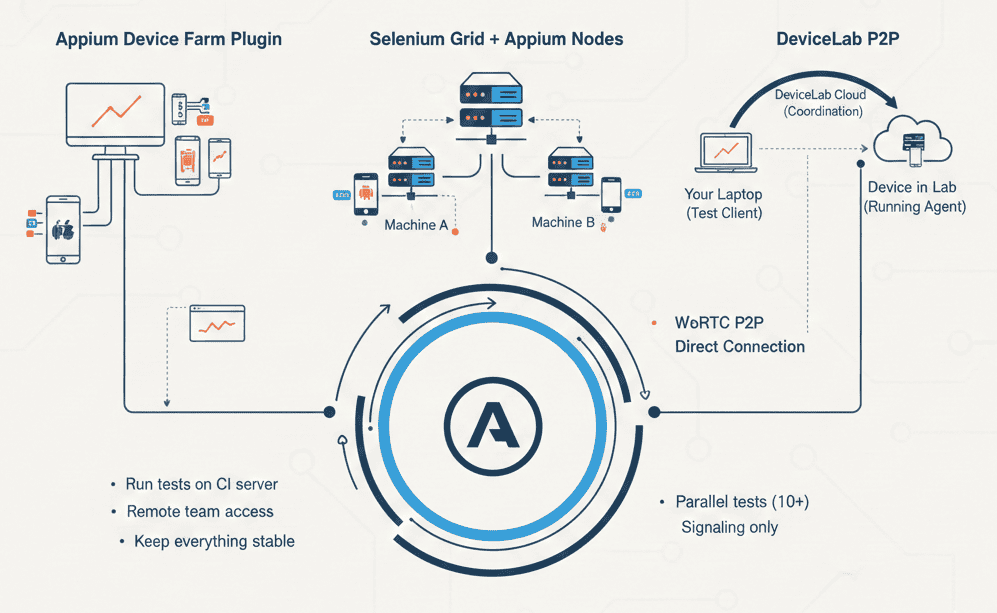
How to run Appium tests across devices in multiple locations—without the complexity of traditional Selenium Grid.
You’ve got Appium working on your local machine. Tests run fine on the phone plugged into your laptop.
Now you need to:
- Run tests on devices in your CI server room
- Let remote team members access the same device pool
- Execute parallel tests across 10+ devices
- Keep everything stable when devices disconnect and reconnect
Welcome to the world of distributed Appium testing. It’s where most teams hit a wall.
The traditional approach—Selenium Grid with Appium nodes—works, but it’s complex. You’re managing hub configurations, node JSON files, port conflicts, and the inevitable “device not found” errors.
This guide covers three approaches, from simplest to most powerful:
- Appium Device Farm Plugin — Easiest setup for local parallel testing
- Selenium Grid + Appium Nodes — Traditional approach for distributed teams
- DeviceLab P2P — Remote device access without infrastructure complexity
Let’s build this step by step.
The Core Problem: Appium Wasn’t Built for Distribution
Appium is a fantastic automation framework. But out of the box, it assumes:
- Devices are physically connected to the machine running Appium
- One Appium server handles one device at a time (mostly)
- Your test client and Appium server are on the same network
When you try to scale beyond this, you hit friction:
| Challenge | Why It Happens |
|---|---|
| Port conflicts | Each Appium instance needs unique ports (systemPort, wdaLocalPort) |
| Device allocation | No built-in mechanism to reserve devices for specific tests |
| Remote access | Devices connected to Machine A aren’t visible to Machine B |
| Health monitoring | Disconnected devices cause cryptic failures |
| Parallel execution | Requires orchestration that Appium doesn’t provide natively |
Every solution to distributed Appium testing addresses these gaps differently.
Option 1: Appium Device Farm Plugin (Simplest)
If your devices are all connected to one machine and you just need parallel execution, the Appium Device Farm plugin is the fastest path.
What It Does
According to the official documentation:
- Automatically detects connected Android, iOS, and tvOS devices—both simulators and real hardware—prior to session initiation
- Dynamically allocates a free device from device pool while creating driver session
- Provides a dashboard to monitor device availability at
localhost:4723/device-farm/ - Allocates random ports for parallel execution, automatically handling port conflicts
Setup (5 minutes)
Prerequisites:
- Node.js 18+
- Appium 2.x installed (
npm install -g appium) - Devices connected via USB
Install the plugin:
Per the Appium plugins documentation:
# Install the device farm plugin
appium plugin install --source=npm appium-device-farm

# Optional: Install dashboard for visual monitoring
appium plugin install --source=npm appium-dashboard
Start Appium with the plugin:
From the Device Farm setup guide:
appium server -ka 800 \
  --use-plugins=device-farm,appium-dashboard \
  -pa /wd/hub \
  --plugin-device-farm-platform=both
Access the dashboard:
Navigate to localhost:4723/device-farm once the Appium server is started.
Configuration Options
Create a server-config.json for more control. From the npm package documentation:
{
  "server": {
    "port": 4723,
    "plugin": {
      "device-farm": {
        "platform": "both",
        "iosDeviceType": "both",
        "androidDeviceType": "both",
        "skipChromeDownload": true,
        "newCommandTimeout": 120
      }
    }
  }
}
Start with the config (source):
appium server -ka 800 \
  --use-plugins=device-farm \
  --config ./server-config.json \
  -pa /wd/hub
Test Code (No Changes Needed)
The beauty of Device Farm plugin: your existing Appium tests work without modification. Just point them at the server. Example from Blibli Tech Blog:
// Java example
UiAutomator2Options options = new UiAutomator2Options();
options.setPlatformName("Android");
options.setAutomationName("UiAutomator2");
// Don't specify UDID - Device Farm allocates automatically

AndroidDriver driver = new AndroidDriver(
    new URL("http://localhost:4723/wd/hub"),
    options
);
# Python example
from appium import webdriver
from appium.options.android import UiAutomator2Options

options = UiAutomator2Options()
options.platform_name = "Android"
options.automation_name = "UiAutomator2"
# No UDID needed

driver = webdriver.Remote("http://localhost:4723/wd/hub", options=options)
Parallel Execution with TestNG
From SW Test Academy’s tutorial:
<!-- testng.xml -->
<suite name="Parallel Suite" parallel="tests" thread-count="4">
    <test name="Test on Device 1">
        <classes>
            <class name="com.example.LoginTest"/>
        </classes>
    </test>
    <test name="Test on Device 2">
        <classes>
            <class name="com.example.CheckoutTest"/>
        </classes>
    </test>
</suite>
Limitations
Per the Device Farm GitHub repository:
- All devices must be connected to one machine (though remote execution is possible with hub-node setup)
- iOS requires additional setup (go-ios for device events)
Best for: Local parallel testing on a single machine with 2-10 devices.
Option 2: Selenium Grid + Appium Nodes (Traditional)
For distributed testing across multiple machines, the traditional approach is Selenium Grid as a hub with Appium servers as nodes. Per the Selenium documentation:
“Selenium Grid allows the execution of WebDriver scripts on remote machines by routing commands sent by the client to remote browser instances.”
Architecture Overview
From BrowserStack’s Selenium Grid tutorial:
“Hub is a server that accepts access requests from the WebDriver client, routing the JSON test commands to the remote drives on nodes. It takes instructions from the client and executes them remotely on the various nodes in parallel.”
┌─────────────────────────────────────────────────────────┐
│                    Selenium Grid Hub                     │
│                   (Central Coordinator)                  │
│                    localhost:4444                        │
└─────────────────────────────────────────────────────────┘
                           │
          ┌────────────────┼────────────────┐
          │                │                │
          ▼                ▼                ▼
   ┌─────────────┐  ┌─────────────┐  ┌─────────────┐
   │ Appium Node │  │ Appium Node │  │ Appium Node │
   │   :4723     │  │   :4724     │  │   :4725     │
   │   Pixel 7   │  │  iPhone 14  │  │  Galaxy S23 │
   │  Machine A  │  │  Machine B  │  │  Machine A  │
   └─────────────┘  └─────────────┘  └─────────────┘
Step 1: Start the Selenium Grid Hub
Download Selenium Server and start the hub. Per Selenium’s getting started guide:
# Start the hub on port 4444
java -jar selenium-server-4.x.x.jar hub --port 4444
The Grid console is available at http://localhost:4444/ui. As noted in the Selenium Grid documentation:
“By default, the server will listen for RemoteWebDriver requests on http://localhost:4444.”
Step 2: Configure Appium Nodes
Each device needs a node configuration file. From SIXT Tech’s Appium guide:
“In order to register a device with the grid we need to create a node config file which is a json file.”
Create node-pixel7.json:
{
  "capabilities": [
    {
      "platformName": "Android",
      "appium:automationName": "UiAutomator2",
      "appium:deviceName": "Pixel 7",
      "appium:udid": "DEVICE_UDID_HERE",
      "maxInstances": 1
    }
  ],
  "configuration": {
    "cleanUpCycle": 2000,
    "timeout": 30000,
    "proxy": "org.openqa.grid.selenium.proxy.DefaultRemoteProxy",
    "url": "http://192.168.1.100:4723/wd/hub",
    "host": "192.168.1.100",
    "port": 4723,
    "maxSession": 1,
    "register": true,
    "registerCycle": 5000,
    "hubHost": "192.168.1.50",
    "hubPort": 4444
  }
}
For iOS devices, create node-iphone14.json:
{
  "capabilities": [
    {
      "platformName": "iOS",
      "appium:automationName": "XCUITest",
      "appium:deviceName": "iPhone 14",
      "appium:udid": "00008030-000A12345678901E",
      "maxInstances": 1
    }
  ],
  "configuration": {
    "url": "http://192.168.1.101:4724/wd/hub",
    "host": "192.168.1.101",
    "port": 4724,
    "maxSession": 1,
    "register": true,
    "hubHost": "192.168.1.50",
    "hubPort": 4444
  }
}
Step 3: Start Appium Nodes
For each device, start an Appium server with unique ports. From SIXT Tech’s guide:
# Android device on Machine A
appium -p 4723 \
  --nodeconfig ./node-pixel7.json \
  --relaxed-security \
  --default-capabilities \
  '{"udid":"DEVICE_UDID","systemPort":8200}'
# iOS device on Machine B (requires Mac)
appium -p 4724 \
  --nodeconfig ./node-iphone14.json \
  --relaxed-security \
  --default-capabilities \
  '{"udid":"00008030-000A12345678901E","wdaLocalPort":8100}'
Critical ports to make unique per device:
Per the UiAutomator2 driver documentation and XCUITest driver documentation:
| Platform | Port | Purpose |
|---|---|---|
| Both | Appium server port (-p) | Main Appium communication |
| Android | systemPort | UiAutomator2 server (default 8200-8299) |
| Android | chromedriverPort | Chrome/WebView automation |
| iOS | wdaLocalPort | WebDriverAgent |
| iOS | mjpegServerPort | Screen streaming |
Step 4: Run Tests Against the Grid
Point your tests at the Grid hub, not individual Appium servers. From BrowserStack’s parallel execution guide:
// Java - Tests go through Grid hub
DesiredCapabilities caps = new DesiredCapabilities();
caps.setCapability("platformName", "Android");
caps.setCapability("appium:automationName", "UiAutomator2");
caps.setCapability("appium:app", "/path/to/app.apk");
// Grid routes to available matching device

AndroidDriver driver = new AndroidDriver(
    new URL("http://grid-hub:4444/wd/hub"),
    caps
);
The Problems with This Approach
From HeadSpin’s guide on parallel Appium testing:
“Unfortunately, this isn’t everything we have to worry about. Appium orchestrates a host of services under the hood to facilitate communication between different subsystems and drivers.”
Common issues include:
- Node registration failures — If the hub restarts, nodes don’t always re-register cleanly
- Stale sessions — Crashed tests leave devices in limbo
- No health checks — Grid doesn’t know if a device is actually responsive
- Complex networking — Firewalls, NAT, and VPNs make cross-location setups painful
- Maintenance burden — Every device needs a config file, unique ports, and monitoring
For more on managing 10+ devices, see our detailed guide.
Best for: Teams with DevOps expertise who need full control over infrastructure.
Option 3: DeviceLab P2P (Remote Without Complexity)
What if you could access devices in multiple locations without running Selenium Grid, managing ports, or dealing with network configuration?
That’s the premise of DeviceLab. Your devices connect directly to remote users via P2P WebRTC connections. No central server routing traffic. No port forwarding. No VPNs.
How It Works
┌──────────────────┐         WebRTC P2P          ┌──────────────────┐
│   Your Laptop    │◄───────────────────────────►│  Device in Lab   │
│   (Test Client)  │    Direct Connection        │  (Running Agent) │
└──────────────────┘                             └──────────────────┘
                              │
                              │ Signaling only
                              ▼
                    ┌──────────────────┐
                    │  DeviceLab Cloud │
                    │  (Coordination)  │
                    └──────────────────┘
Key difference: Your app binaries and test data flow directly between your machine and the device. They never pass through DeviceLab servers.
Setup
On the machine with devices:
- Install the DeviceLab agent
- Connect devices via USB
- Devices appear in your DeviceLab dashboard
On your test machine:
- Get your device’s remote Appium URL from the dashboard
- Point your tests at that URL
// Connect to a device in your Bangalore office from your laptop in SF
AndroidDriver driver = new AndroidDriver(
    new URL("https://your-device.devicelab.dev/wd/hub"),
    capabilities
);
What You Get
| Feature | Selenium Grid | DeviceLab |
|---|---|---|
| Cross-location access | Complex (VPN/tunnels) | Built-in |
| Device health monitoring | Manual | Automatic |
| Session recording | Manual setup | Built-in |
| Port management | Manual per device | Automatic |
| Data privacy | Your network | P2P (never touches cloud) |
| Setup time | Hours to days | Minutes |
When DeviceLab Makes Sense
- Devices in multiple physical locations
- Remote team members need device access
- Security requirements prohibit sending apps to cloud farms
- You want device lab benefits without DevOps overhead
Best for: Teams who want distributed device access without infrastructure complexity.
Capability Reference for Distributed Testing
Regardless of which approach you use, these capabilities are essential for distributed Appium testing.
Android Capabilities
From the UiAutomator2 driver documentation and LambdaTest’s capability guide:
UiAutomator2Options options = new UiAutomator2Options();

// Essential for device targeting
options.setUdid("DEVICE_SERIAL");           // Specific device
options.setPlatformVersion("14");            // OS version matching
options.setDeviceName("Pixel 7");            // For logging/identification

// Essential for parallel execution (per UiAutomator2 docs)
options.setSystemPort(8200);                 // Unique per device (default 8200-8299)
options.setChromedriverPort(9515);           // Unique if testing WebViews
options.setAdbExecTimeout(60000);            // Longer for remote devices

// Recommended for stability
options.setNewCommandTimeout(120);           // Prevent premature session death
options.setNoReset(false);                   // Clean state between tests
options.setAutoGrantPermissions(true);       // Avoid permission dialogs
As noted in LambdaTest’s documentation:
“By default, any of the 8200-8299 free port numbers will be used. But if you want to execute your tests in parallel, you must ensure that you provide a unique systemPort number capability.”
iOS Capabilities
From the XCUITest driver documentation:
XCUITestOptions options = new XCUITestOptions();

// Essential for device targeting
options.setUdid("00008030-000A12345678901E");
options.setPlatformVersion("17.0");
options.setDeviceName("iPhone 14 Pro");

// Essential for parallel execution
options.setWdaLocalPort(8100);              // Unique per device
options.setMjpegServerPort(9100);           // Unique for screen streaming
options.setWebkitDebugProxyPort(27753);     // Unique for Safari debugging

// Recommended for stability
options.setNewCommandTimeout(120);
options.setWdaLaunchTimeout(120000);        // WDA can be slow to start
options.setWdaConnectionTimeout(60000);
options.setCommandTimeouts("{}");
Dynamic Port Allocation
When running many parallel tests, hardcoding ports doesn’t scale. From HeadSpin’s parallel testing guide:
“udid: if you don’t include this capability, the driver will attempt to use the first device in the list returned by ADB. This could result in multiple sessions targeting the same device, which is not a desirable situation.”
Use dynamic allocation:
public class PortManager {
    private static final AtomicInteger systemPortCounter = new AtomicInteger(8200);
    private static final AtomicInteger wdaPortCounter = new AtomicInteger(8100);

    public static int getNextSystemPort() {
        return systemPortCounter.getAndIncrement();
    }

    public static int getNextWdaPort() {
        return wdaPortCounter.getAndIncrement();
    }
}

// In your test setup
options.setSystemPort(PortManager.getNextSystemPort());
Or use truly random available ports:
public static int findFreePort() {
    try (ServerSocket socket = new ServerSocket(0)) {
        return socket.getLocalPort();
    } catch (IOException e) {
        throw new RuntimeException("No free port available", e);
    }
}
CI/CD Integration Patterns
GitHub Actions with Self-Hosted Devices
name: Mobile Tests
on: [push]

jobs:
  android-tests:
    runs-on: self-hosted  # Your machine with devices
    steps:
      - uses: actions/checkout@v4

      - name: Start Appium with Device Farm
        run: |
          appium server -ka 800 \
            --use-plugins=device-farm \
            -pa /wd/hub \
            --plugin-device-farm-platform=android &
          sleep 10  # Wait for server

      - name: Run Tests
        run: ./gradlew connectedAndroidTest

      - name: Stop Appium
        if: always()
        run: pkill -f appium || true
Jenkins with Parallel Device Execution
pipeline {
    agent any

    stages {
        stage('Parallel Device Tests') {
            parallel {
                stage('Android Tests') {
                    steps {
                        sh '''
                            ./gradlew test \
                              -PappiumUrl=http://device-farm:4723/wd/hub \
                              -Pplatform=android
                        '''
                    }
                }
                stage('iOS Tests') {
                    steps {
                        sh '''
                            ./gradlew test \
                              -PappiumUrl=http://mac-mini:4724/wd/hub \
                              -Pplatform=ios
                        '''
                    }
                }
            }
        }
    }
}
GitLab CI with DeviceLab
mobile-tests:
  stage: test
  script:
    - |
      # DeviceLab provides stable URLs - no infrastructure to manage
      ./gradlew test \
        -PappiumUrl=$DEVICELAB_ANDROID_URL \
        -Pplatform=android
  parallel:
    matrix:
      - DEVICE: [pixel-7, galaxy-s23, oneplus-11]
Troubleshooting Distributed Appium
“Could not start a new session”
Symptoms: Session creation fails with timeout or connection refused.
Causes and fixes:
# 1. Check if Appium is running
curl http://localhost:4723/status

# 2. Check if device is connected
adb devices  # Android
idevice_id -l  # iOS

# 3. Check for port conflicts
lsof -i :4723
lsof -i :8200  # systemPort

# 4. Restart ADB server (Android)
adb kill-server && adb start-server
If you’re seeing tests pass locally but fail in CI, check for environment differences.
“Device not found” in Grid
Symptoms: Grid shows node but tests fail to find device.
Causes (from OneFootball’s distributed testing guide):
“If your Appium server is running on a different machine to your Selenium Grid server, make sure you use an external name/IP address in your host & url docs; localhost and 127.0.0.1 will prevent Selenium Grid from connecting correctly.”
- UDID mismatch between node config and actual device
- Device disconnected after node registration
- ADB not recognizing device
Fixes:
# Verify UDID matches
adb devices  # Check actual UDID

# Re-register node
# Restart Appium with correct UDID in --default-capabilities
Parallel tests interfering with each other
Symptoms: Tests randomly fail when running in parallel but pass individually.
Causes (from HeadSpin’s guide):
“There are thus a handful of capabilities that need to be included to make sure no system resource conflicts exist between your different test sessions.”
- Port conflicts (systemPort, wdaLocalPort, etc.)
- Tests modifying shared state on device
- Insufficient device resources (memory/CPU)
Fixes:
// Ensure unique ports
options.setSystemPort(findFreePort());
options.setChromedriverPort(findFreePort());

// Reset app state between tests
options.setNoReset(false);
options.setFullReset(true);  // Reinstall app each time
iOS “WebDriverAgent installation failed”
Symptoms: XCUITest driver fails to install WDA on device.
Causes (from Palo-IT’s iOS Appium guide):
“WebDriverAgent is an iOS Webdriver server that can be used to remote control iOS devices… This application must be signed in order to be installed on iOS devices.”
- Code signing issues
- Provisioning profile expired
- Device not trusted
Fixes:
From AWS Device Farm documentation:
“In order to run Appium tests on iOS devices, the use of WebDriverAgent is required. This application must be signed in order to be installed on iOS devices.”
# Check provisioning profiles
security find-identity -v -p codesigning

# Rebuild WDA manually
cd ~/.appium/node_modules/appium-xcuitest-driver/node_modules/appium-webdriveragent
xcodebuild -project WebDriverAgent.xcodeproj \
  -scheme WebDriverAgentRunner \
  -destination 'id=DEVICE_UDID' \
  test
Comparison: Which Approach Should You Use?
| Criteria | Device Farm Plugin | Selenium Grid | DeviceLab |
|---|---|---|---|
| Setup complexity | Low (5 min setup) | High (requires DevOps) | Low |
| Devices on one machine | Yes | Yes | Yes |
| Devices across locations | No | Yes (complex) | Yes (simple) |
| Remote team access | No | Yes (VPN needed) | Yes (built-in) |
| Port management | Automatic | Manual | Automatic |
| Device health monitoring | Basic | Manual | Automatic |
| Data privacy | Local | Your network | P2P (data never in cloud) |
| Cost | Free | Free (+ DevOps time) | $99/device/month |
| Best for | Local parallel | Full control | Distributed teams |
Frequently Asked Questions
Can I run Appium tests on devices connected to a different network?
Yes, but it requires either VPN/tunneling for the Selenium Grid approach, or a solution like DeviceLab that handles the networking via WebRTC. Without either, devices on different networks can’t communicate directly due to NAT and firewall restrictions.
How many parallel Appium sessions can one machine handle?
For Android, a typical machine can handle 4-8 parallel sessions depending on CPU and RAM. For iOS, you’re limited by available simulators or real devices, with each XCUITest session being more resource-intensive. Real devices are generally more efficient than emulators.
Why do I need unique ports for each device in parallel testing?
Appium drivers spawn helper services (UiAutomator2 server, WebDriverAgent, ChromeDriver) that bind to specific ports. If two sessions try to use the same port, one will fail. systemPort (Android) and wdaLocalPort (iOS) are the most common culprits.
Is Selenium Grid 4 better than Grid 3 for Appium?
Grid 4 has better architecture but Appium integration is essentially the same. The main benefit is improved session management and a nicer UI. However, the fundamental challenges of distributed Appium remain regardless of Grid version.
How do I handle iOS provisioning profiles expiring across multiple devices?
Options include: wildcard provisioning profiles (less secure), automated renewal scripts, or MDM solutions. For enterprise device labs, we typically recommend a quarterly renewal process with calendar reminders.
The Path Forward
Start simple:
- If devices are local: Use Appium Device Farm plugin. 5-minute setup.
- If you need distribution but have DevOps capacity: Build Selenium Grid infrastructure.
- If you need distribution without the complexity: Try DeviceLab.
Cloud options include Kobiton (per-minute pricing, mobile-focused) and BrowserStack (per-session, broader coverage).
For teams planning to grow, see our guide on scaling from 0 to 100 devices.
The goal isn’t the most sophisticated setup. It’s the setup that lets you run reliable tests across real devices without consuming engineering time on infrastructure.
Running Appium tests across distributed devices? DeviceLab gives you remote device access via P2P—your tests connect directly to devices anywhere, and your data never touches our servers. First device free. $99/device/month after that.