
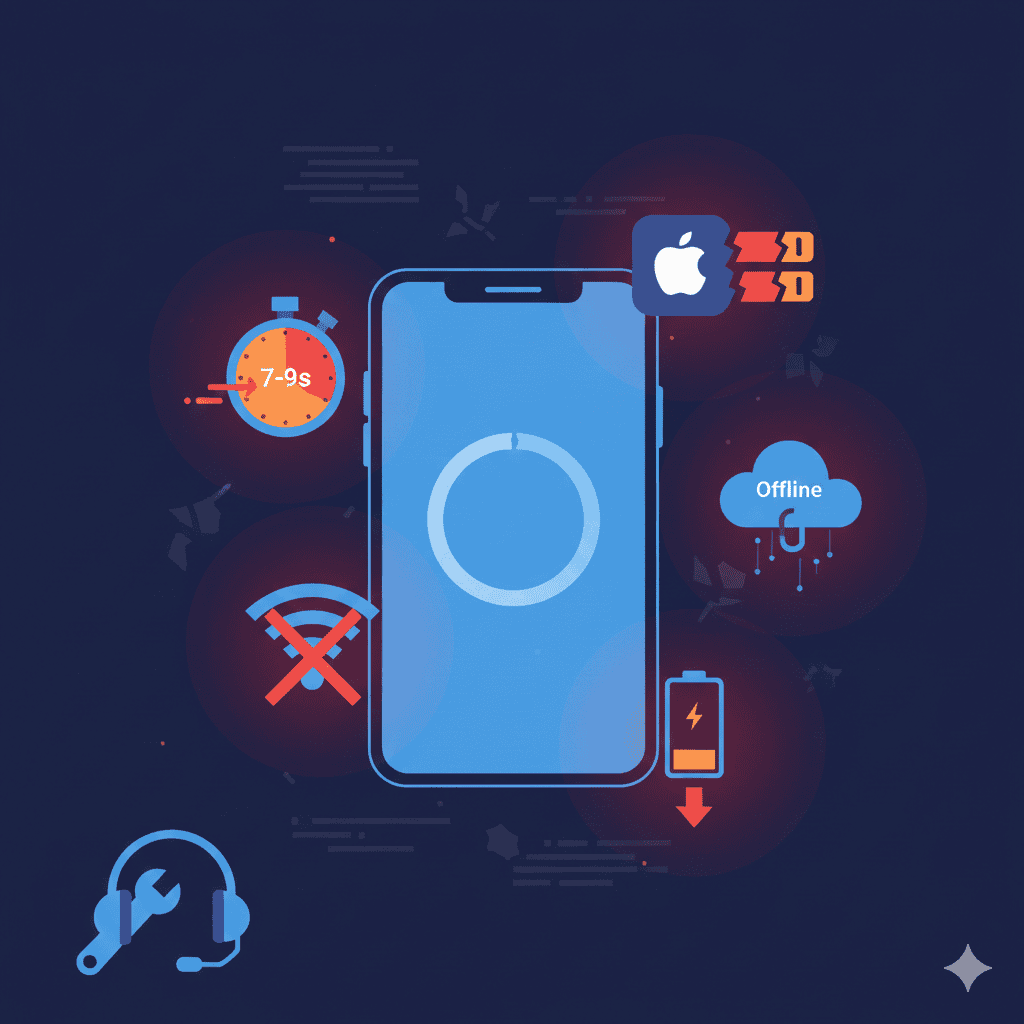
HeadSpin is a powerful platform, but users encounter recurring issues. The most common: latency, devices going offline, and iOS limitations.
This guide covers the real problems users report — and the workarounds that actually help.
Problem 1: Extreme Latency (7-9 Seconds)
Latency User Reports
“First of all, it’s very laggy. Not with the UI, but when you interact with the remote devices, I think the latency is seven to nine seconds. That means that there is a seven- to nine-second delay on average when you click on certain things.”
— PeerSpot review
“If you want to do some testing or check the devices manually or check the application in a particular device manually, it is really laggy. That’s a disappointment because sometimes we would like to do manual testing when our local devices are not available.”
— PeerSpot review
Why It Happens
HeadSpin’s latency is architectural, not a bug:
- Network distance — Devices may be thousands of miles from your location
- Video streaming — Real-time screen mirroring adds overhead
- Shared infrastructure — Multiple users impact device responsiveness
- Encoding/decoding — Frame capture and transmission takes time
Workarounds
For manual testing:
- Use Remote Access only for quick checks, not extended sessions
- Perform detailed manual testing on local devices when possible
- Schedule critical manual sessions during off-peak hours (fewer users)
For automated testing:
- Latency impacts less since scripts don’t wait for visual feedback
- Add explicit waits in test scripts to account for delays
- Use HeadSpin’s performance capture instead of visual verification
Reduce perceived latency:
- Use lower resolution streaming if available
- Close unnecessary browser tabs
- Test with wired ethernet connection
What Won’t Help
- Upgrading your internet speed (the bottleneck is HeadSpin’s infrastructure)
- Contacting support (this is expected behavior, not a defect)
- Switching browsers (latency is server-side)
Reality Check
7-9 second latency is a platform characteristic. If this is unacceptable for your workflow, consider alternatives with lower latency or testing on local devices.
Problem 2: Devices Going Offline
Offline Device Reports
“Devices sometimes go offline, and some features do not function on some devices, especially on iOS.”
— PeerSpot review
“Hardware improvements are needed, as mobile battery life reduces quickly and requires continuous charging.”
— PeerSpot review
Common Causes
- Battery drain — Mobile devices discharge during testing
- Network drops — Connectivity issues at HeadSpin facilities
- Hardware failures — Physical devices fail
- Maintenance — Scheduled or emergency maintenance
- Reserved by others — Shared infrastructure means competition
Immediate Solutions
Check device status:
- Navigate to Devices tab
- Look for status indicators (Available, Busy, Offline)
- If Offline, device is temporarily unavailable
Switch devices:
- Select a different device of similar specs
- Use your device pool’s fallback options
Wait and retry:
- Devices often come back online within 15-30 minutes
- Battery issues resolve after charging cycles
Preventive Measures
Use device pools:
desired_caps = {
    'headspin:devicePool': 'android-pixel-pool',
    # HeadSpin selects any available device from pool
}
Device pools automatically route to available devices, avoiding single-device dependencies.
Don’t rely on specific devices:
- Avoid hardcoding UDIDs in CI/CD
- Design tests to work across device variants
- Accept minor UI differences between models
Schedule strategically:
- Run critical tests during low-traffic hours
- Avoid Monday mornings and release windows (peak usage)
When to Contact Support
- Device consistently offline for 24+ hours
- Multiple devices in a region simultaneously down
- Pattern suggests infrastructure issue, not individual device
HeadSpin support is responsive (G2: 9.1 rating). For full setup guidance, see our HeadSpin setup guide.
Problem 3: iOS Entitlements Stripped
iOS Entitlement Reports
iOS apps re-signed by HeadSpin lose functionality. Features like Push Notifications, In-App Purchase, and HealthKit don’t work.
Why Entitlements Are Stripped
HeadSpin re-signs iOS apps with a wildcard provisioning profile. This enables installation on their devices but removes app-specific entitlements. This is a common cloud device lab limitation.
Stripped entitlements:
- Push Notifications
- In-App Purchase
- Apple Pay
- HealthKit
- HomeKit
- Associated Domains
- Wireless Accessory Configuration
- Inter-App Audio
- VPN Configuration & Control
- Game Center
What This Breaks
| Feature | HeadSpin Behavior |
|---|---|
| Push notifications | Won’t receive |
| IAP flows | Purchases fail |
| Apple Pay | Payment sheet won’t appear |
| HealthKit data | Access denied |
| Universal Links | Won’t open in app |
| App Clips | Won’t trigger |
Entitlement Workarounds
For testing notification logic:
- Mock notification payloads locally
- Test notification handling code with synthetic triggers
- Verify UI states without actual push delivery
For IAP testing:
- Use sandbox/mock mode in your app
- Test purchase logic with StoreKit testing in Xcode
- Validate HeadSpin for post-purchase flows only
For HealthKit/HomeKit:
- These cannot be tested on HeadSpin
- Use local devices or Apple’s TestFlight
What Won’t Fix Entitlements
- Uploading a differently signed IPA (HeadSpin re-signs all apps)
- Requesting entitlement exceptions (this is platform-wide)
- Using Enterprise distribution (still gets re-signed)
iOS Entitlement Reality
If your app’s core functionality requires stripped entitlements, HeadSpin cannot fully test it. You’ll need:
- Local device testing
- Apple TestFlight
- Your own device infrastructure
Problem 4: tvOS WiFi Limitations
tvOS WiFi Reports
“tvOS devices can’t be connected to Wi-Fi. You have to change the location and use a different Wi-Fi or VPN for each device. Mobile devices can be connected, but it’s not there yet for tvOS devices.”
— PeerSpot review
“Apple TV is connected to LAN, and if you have LAN, it cannot switch between regions because the LAN is for a particular user. Since the Wi-Fi support is not there, you can’t switch it to, let’s say, UK or Denmark because it’s connected to LAN.”
— PeerSpot review
Why tvOS Uses LAN
HeadSpin’s Apple TV devices are wired (LAN), not wireless. This is likely for reliability, but it limits flexibility.
Impact
- Can’t test region-specific content by switching WiFi
- Can’t test WiFi-specific behaviors on tvOS
- Limited geographic testing for streaming apps
tvOS Workarounds
For region testing:
- Test region logic on iOS devices (WiFi supported)
- Use VPN configurations where possible
- Accept that tvOS geographic testing is limited
For WiFi-specific features:
- Test on local Apple TV with your own WiFi
- Document tvOS WiFi tests as out-of-scope for HeadSpin
What Won’t Fix tvOS WiFi
- Requesting WiFi support (hardware limitation at HeadSpin facilities)
- Using different tvOS devices (all are LAN-connected)
Problem 5: Appium Session Failures
Common Error: “Session creation failed”
Possible causes:
-
Incorrect UDID
- Verify UDID matches an available device
- Check for typos in capabilities
-
Device busy
- Device reserved by another user
- Use device pools instead of specific UDIDs
-
Capability mismatch
- OS version in caps doesn’t match device
- Automation name incompatible with OS
-
App not installed
- Upload app before starting session
- Verify bundle ID / package name matches
Debugging Steps
# Add verbose logging
desired_caps = {
    # ... your caps ...
    'headspin:newCommandTimeout': 300,
    'headspin:testName': 'Debug Session',
}

try:
    driver = webdriver.Remote(url, desired_caps)
except Exception as e:
    print(f"Session failed: {e}")
    # Check HeadSpin dashboard for detailed logs
Verify Configuration
| Check | How |
|---|---|
| Device available | HeadSpin UI > Devices > Status |
| UDID correct | Copy directly from HeadSpin UI |
| App uploaded | HeadSpin UI > Apps > Verify listed |
| Caps match device | OS version, automation name |
Common Fixes
For “device not found”:
# Use pool instead of specific UDID
desired_caps = {
    'headspin:devicePool': 'ios-iphone-pool',
    # Remove specific 'udid' capability
}
For “app not installed”:
# Ensure app capability is set
desired_caps = {
    'app': '<HEADSPIN_APP_URL>',  # Get from HeadSpin after upload
    # OR
    'bundleId': 'com.yourcompany.app',  # If already installed
}
Problem 6: Slow Test Execution
Slow Performance Reports
“It is slow. It is super slow.”
— PeerSpot review
Why Tests Run Slower
- Session startup — 30-60 seconds for device preparation
- Command latency — Each Appium command has network overhead
- Screenshot capture — Performance data collection adds time
- Shared resources — Device contention during peak hours
Optimization Tips
Reduce session count:
- Batch tests into fewer sessions
- Reuse sessions where possible
Minimize screenshots:
# Only capture on failure
desired_caps = {
    'headspin:screenshotOnError': True,
    'headspin:captureVideo': False,  # Disable if not needed
}
Use explicit waits wisely:
# Avoid excessive polling
from selenium.webdriver.support.ui import WebDriverWait
from selenium.webdriver.support import expected_conditions as EC

# Instead of sleep(), use explicit waits
element = WebDriverWait(driver, 30).until(
    EC.presence_of_element_located((By.ID, "login-button"))
)
Parallelize:
- Run tests across multiple devices simultaneously
- HeadSpin supports parallel execution
Expected vs Problematic Slowness
| Behavior | Expected? |
|---|---|
| 30-60s session start | Yes |
| 1-2s per Appium command | Yes |
| Tests 2x slower than local | Yes |
| Tests 5x+ slower than local | Investigate |
| Session hangs indefinitely | Contact support |
Problem 7: UI Complexity and Navigation
UI Complexity Reports
“Confusing user interface. Dashboard can be improved.”
— G2 review
“HeadSpin users say the platform’s UI is complex and confusing, specifically for new users.”
— Medium comparison
Navigation Tips
Key sections:
- Devices: Find and connect to devices
- Performance Sessions: View recorded test data
- Apps: Upload and manage applications
- Settings: Integrations, Grafana, API keys
Bookmark frequently used pages:
- Device list with your common filters
- Your device pools
- Grafana dashboards
Use keyboard shortcuts:
- Check HeadSpin documentation for available shortcuts
- Speeds up repetitive navigation
Workaround for Complexity
“Utilise the support they offer, it’s definitely industry leading and the support team are extremely knowledgeable.”
— SoftwareReviews
Don’t struggle alone. Schedule onboarding calls with HeadSpin support to learn efficient workflows.
Problem 8: Limited Reporting Customization
Reporting Limitation Reports
“HeadSpin is the limited flexibility in custom data visualization and reporting options. While it offers valuable insights, the platform could benefit from more customizable dashboards.”
— SoftwareReviews
Reporting Workarounds
Use Grafana integration:
- HeadSpin provisions Grafana automatically
- Build custom dashboards with their data
- More flexibility than native HeadSpin reports
Export data:
- Use HeadSpin APIs to extract session data
- Build custom reports in your BI tools
API access:
import requests

# Get session data via API
response = requests.get(
    'https://api.headspin.io/v0/sessions/<session_id>',
    headers={'Authorization': 'Bearer <API_KEY>'}
)
session_data = response.json()
# Process in your own reporting system
When to Escalate to Support
Contact HeadSpin support when:
- Device offline for 24+ hours
- Consistent session failures across multiple devices
- Performance significantly worse than documented
- Billing or account issues
- Feature requests
How to contact:
- In-platform support chat
- Direct Zoom/Google Meet calls (enterprise)
- Email support
What to include:
- Session IDs for failed tests
- Device UDIDs affected
- Error messages and screenshots
- Steps to reproduce
When HeadSpin Isn’t the Problem
Some issues seem like HeadSpin problems but aren’t:
| Symptom | Actual Cause |
|---|---|
| App crashes on HeadSpin only | App bug triggered by different device state |
| Tests pass locally, fail remotely | Timing/race condition in test code |
| Slow tests | Inefficient test design, not platform |
| “Element not found” | Dynamic content, need better locators |
Debugging tip: Run the same test on local devices. If it fails there too, it’s not HeadSpin.
Alternative Solutions
If HeadSpin’s limitations block your workflow:
For latency issues:
- Test on local devices (zero latency)
- Use DeviceLab for own-device testing
For iOS entitlement needs:
- Apple TestFlight
- Local devices with proper provisioning
For tvOS WiFi:
- Local Apple TV with your network
For simpler experience:
- BrowserStack (easier UI, G2 ease of use: 8.9 vs 8.3)
- Sauce Labs (comprehensive platform)
Frequently Asked Questions
Why is HeadSpin so slow and laggy?
HeadSpin users report 7-9 second latency when interacting with remote devices. This is due to network distance to HeadSpin’s infrastructure, video streaming overhead, and shared device architecture. The latency is a known platform characteristic, not a bug.
Why do HeadSpin devices go offline?
Devices go offline due to battery drain, network connectivity issues, hardware failures, or maintenance. HeadSpin uses shared infrastructure, so devices may also become unavailable when reserved by other users. Use device pools with fallback options to mitigate.
Why doesn’t Push Notification work on HeadSpin iOS?
HeadSpin re-signs iOS apps with a wildcard provisioning profile, which strips Push Notification entitlements. In-App Purchase, Apple Pay, HealthKit, HomeKit, and other entitlements are also removed. This is a platform limitation, not a bug.
Why is HeadSpin tvOS not connecting to WiFi?
HeadSpin’s Apple TV devices are connected via LAN, not WiFi. Users cannot switch tvOS devices between regions because they lack WiFi support. This limits testing for apps that require region-specific WiFi configurations.
How do I fix HeadSpin Appium session failures?
Common causes include incorrect UDID, device already in use, capability mismatches, or app not installed. Verify your WebDriver URL, check device availability, ensure capabilities match device OS version, and confirm the app is properly uploaded.
Is 7-9 second latency normal for HeadSpin?
Yes. Multiple user reviews confirm this latency range as typical. It’s an architectural characteristic of remote device testing over the internet, not a defect. If latency is critical, consider local device testing.
Summary
| Problem | Root Cause | Solution |
|---|---|---|
| 7-9s latency | Platform architecture | Accept or use local devices |
| Devices offline | Shared infrastructure | Use device pools |
| iOS entitlements stripped | Re-signing requirement | Test locally for those features |
| tvOS no WiFi | LAN-only connection | Test iOS for region logic |
| Appium failures | Config issues | Verify caps, use pools |
| Slow tests | Network + shared devices | Optimize scripts, parallelize |
| Complex UI | Feature density | Use support, learn workflows |
HeadSpin’s issues aren’t bugs — they’re platform characteristics. Understanding them helps set realistic expectations and design effective workarounds.
Tired of workarounds? DeviceLab runs tests on your own devices — zero latency, no entitlement stripping, full control. $99/device/month.