
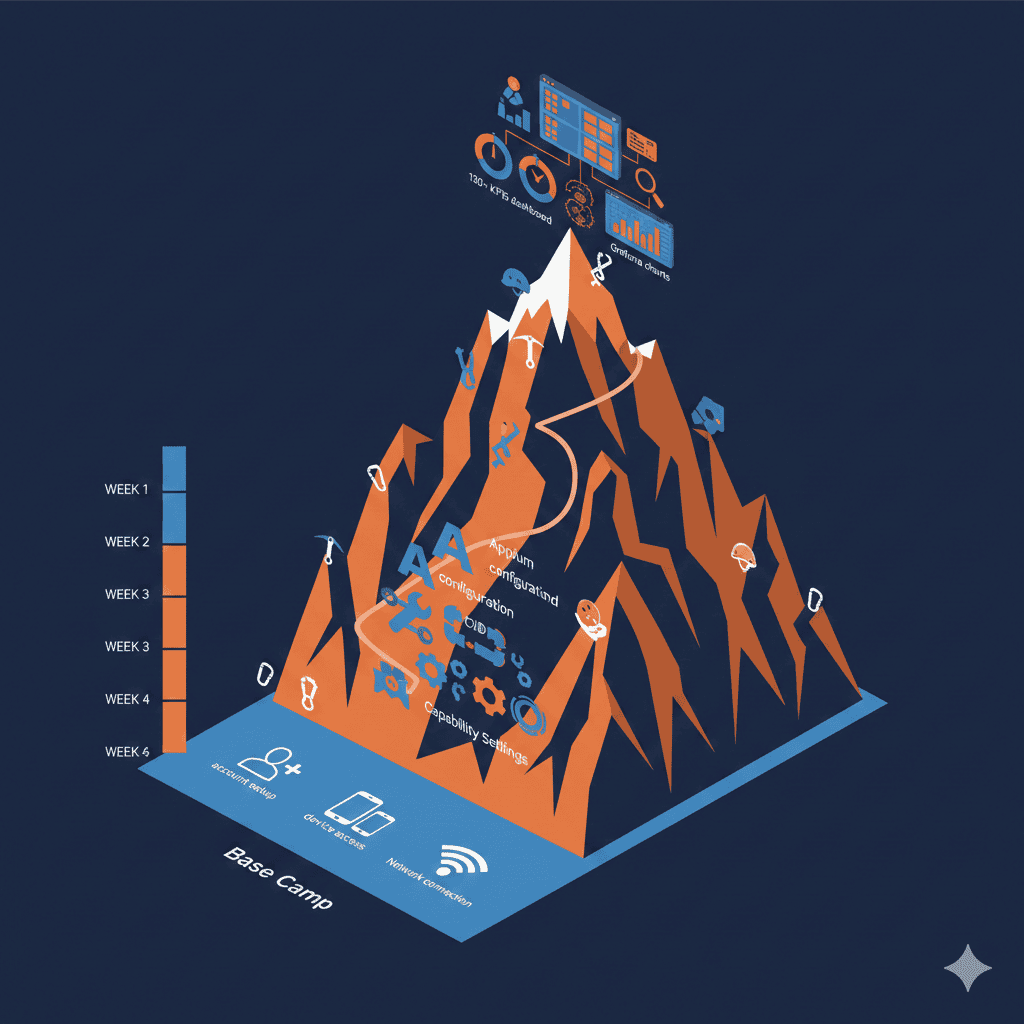
HeadSpin’s official documentation covers the basics. What it doesn’t emphasize: the setup experience is more complex than cloud testing alternatives.
This guide covers what real users encounter — the manual onboarding, UI complexity, and integration challenges that the docs gloss over.
Before You Start: Expectations
What Users Say About Setup
“They should automate their onboarding. A lot of things are still manual. They can create a video assistant or something like that to completely automate the entire process.”
— PeerSpot review
“There is great scope to improve professional services. The time to deploy is quite long.”
— PeerSpot review
“The service is extremely feature packed and that means there’s quite a technical complexity to it.”
— SoftwareReviews
Realistic timeline:
- Account creation: Minutes
- Basic device access: Hours
- Automation integration: Days
- Performance analytics mastery: Weeks
HeadSpin is powerful but not plug-and-play. Plan accordingly.
Step 1: Account Creation and Trial
Getting Access
- Visit headspin.io
- Request a trial (14 days, no free tier)
- HeadSpin team contacts you for requirements
- Receive credentials after qualification
Note: Unlike BrowserStack or Sauce Labs, HeadSpin doesn’t offer instant self-service signup. You’ll speak with sales before getting access.
Initial Dashboard Access
Once approved, you’ll access the HeadSpin UI at your designated URL.
First impression warning:
“Confusing user interface. Dashboard can be improved.”
— G2 review
“HeadSpin users say the platform’s UI is complex and confusing, specifically for new users.”
— Medium comparison
Take time to explore before running tests. The feature density can overwhelm.
Step 2: Understanding the Platform Structure
HeadSpin organizes around these core concepts:
Device Infrastructure
- Hosts: Physical locations where devices are deployed
- Devices: Actual phones, tablets, TVs connected at each host
- Device Pools: Logical groupings for test targeting
Testing Modes
- Remote Control: Interactive manual testing via browser
- Performance Sessions: Recorded sessions with KPI capture
- Automated Testing: Appium/Selenium script execution
Analytics
- Session Data: Per-session performance metrics
- KPIs: 130+ metrics across app, device, and network
- Issue Cards: AI-detected performance problems
Understanding this structure helps navigate the UI.
Step 3: Accessing Devices
Finding Available Devices
- Navigate to the Devices tab
- Filter by OS, manufacturer, model, or location
- Check availability status (Available, Busy, Offline)
Common frustration:
“Devices sometimes go offline, and some features do not function on some devices, especially on iOS.”
— PeerSpot review
Popular devices may be unavailable during peak hours. HeadSpin is shared infrastructure.
Starting a Remote Session
- Select an available device
- Click Start to launch Remote Control
- Wait for connection (may take 30-60 seconds)
Latency warning:
“First of all, it’s very laggy. Not with the UI, but when you interact with the remote devices, I think the latency is seven to nine seconds.”
— PeerSpot review
Expect 7-9 second delays between taps and responses. This is normal for HeadSpin’s architecture.
Device Tray
You can add multiple devices to your tray for quick switching. Useful for comparison testing across models.
Step 4: Installing Your App
For Android
Via Remote Control:
- Drag and drop APK onto the device screen
- Wait for installation to complete
Via ADB:
- Copy the
adb connectcommand from HeadSpin UI - Run in terminal to connect local ADB
- Use standard
adb installcommands
For iOS
Via Remote Control:
- Upload IPA file through the UI
- HeadSpin re-signs with their provisioning profile
Important limitation:
HeadSpin strips iOS entitlements when re-signing:
- Push Notifications
- In-App Purchase
- Apple Pay
- HealthKit
- HomeKit
- Associated Domains
If your app requires these entitlements, testing on HeadSpin will produce incomplete results. This is a common cloud device lab limitation.
Step 5: Recording Performance Sessions
HeadSpin’s differentiator is performance analytics. Here’s how to capture data:
Starting a Session
- In Remote Control view, click Start Recording Session
- Perform your test actions
- Click Stop Recording when complete
What Gets Captured
- Video recording of the session
- 130+ performance KPIs:
- App launch time
- Frame rate / jank detection
- Memory usage
- Network request timing
- Battery consumption
- CPU utilization
Reviewing Session Data
- Navigate to Performance Sessions
- Select your recorded session
- Explore timeline, KPIs, and AI-generated issue cards
Learning curve note:
“Getting more technical specialists involved in things like Performance testing… does take a significant amount of effort and time.”
— SoftwareReviews
The analytics are powerful but require investment to interpret effectively.
Step 6: Appium Integration
HeadSpin supports Appium natively. Here’s the configuration:
Getting Connection Details
- Navigate to device list
- Select your target device
- Find WebDriver URL and capabilities in device details
Basic Appium Configuration
from appium import webdriver

desired_caps = {
    'platformName': 'iOS',  # or 'Android'
    'deviceName': 'iPhone',
    'automationName': 'XCUITest',  # or 'UiAutomator2'
    'udid': '<HEADSPIN_UDID>',
    'bundleId': '<YOUR_BUNDLE_ID>',  # iOS
    # 'appPackage': '<YOUR_PACKAGE>',  # Android
    # 'appActivity': '<YOUR_ACTIVITY>',  # Android
}

driver = webdriver.Remote(
    command_executor='<HEADSPIN_WEBDRIVER_URL>',
    desired_capabilities=desired_caps
)
HeadSpin-Specific Capabilities
HeadSpin extends standard Appium with custom capabilities:
desired_caps = {
    # ... standard caps ...
    'headspin:capture': True,  # Enable performance capture
    'headspin:testName': 'Login Flow Test',
    'headspin:appiumVersion': '2.0',
}
Key Points
- HeadSpin hosts the Appium server — no local installation needed
- Standard Appium commands work normally
- Performance data captures automatically with
headspin:capture - Session results appear in Performance Sessions UI
Step 7: Selenium Integration
For mobile web and desktop browser testing:
from selenium import webdriver

capabilities = {
    'browserName': 'chrome',
    'platformName': 'Android',
    'headspin:capture': True,
}

driver = webdriver.Remote(
    command_executor='<HEADSPIN_WEBDRIVER_URL>',
    desired_capabilities=capabilities
)
Supported browsers:
- Chrome
- Firefox
- Edge
- Safari (iOS/macOS)
Step 8: CI/CD Integration
Jenkins Integration
HeadSpin provides Jenkins plugins and pipeline support:
pipeline {
    agent any

    stages {
        stage('Test') {
            steps {
                sh '''
                    export HEADSPIN_URL="<your-headspin-url>"
                    export HEADSPIN_UDID="<device-udid>"
                    pytest tests/ --headspin
                '''
            }
        }
    }

    post {
        always {
            // Artifacts available in HeadSpin dashboard
            echo "View results at HeadSpin Performance Sessions"
        }
    }
}
GitLab CI/CD
test:
  stage: test
  script:
    - pip install -r requirements.txt
    - pytest tests/ --headspin-url=$HEADSPIN_URL
  variables:
    HEADSPIN_URL: $HEADSPIN_WEBDRIVER_URL
CircleCI
version: 2.1

jobs:
  test:
    docker:
      - image: python:3.9
    steps:
      - checkout
      - run:
          name: Run HeadSpin Tests
          command: |
            pip install -r requirements.txt
            pytest tests/
          environment:
            HEADSPIN_URL: ${HEADSPIN_WEBDRIVER_URL}
Slack Integration
HeadSpin integrates with Slack for notifications:
- Navigate to Settings > Integrations
- Add Slack workspace
- Configure notification triggers (test completion, failures, etc.)
Step 9: Grafana Integration
HeadSpin automatically provisions a Grafana account for performance visualization:
Accessing Grafana
- Navigate to Settings > Grafana
- HeadSpin creates/links your Grafana instance
- Pre-built dashboards show KPI trends
Custom Dashboards
- Query HeadSpin’s Replica database
- Build custom visualizations
- Track performance over time
- Compare across builds/releases
This is a unique HeadSpin feature — competitors don’t offer native Grafana integration.
Step 10: Setting Up Device Pools
For consistent CI/CD testing, create device pools:
Creating a Pool
- Navigate to Device Management
- Create new device pool
- Add devices by criteria:
- OS version range
- Device models
- Locations
- Manufacturers
Using Pools in Tests
Reference pools in your automation:
desired_caps = {
    # Instead of specific UDID
    'headspin:devicePool': 'android-flagship-pool',
}
HeadSpin selects an available device from the pool.
Common Setup Problems
“Upload request failed (400)”
Cause: App package doesn’t meet HeadSpin requirements
Solutions:
- Verify APK/IPA is signed correctly
- Check file size limits
- Ensure compatible architecture
“Device not available”
Cause: Device in use by another user or offline
Solutions:
- Use device pools with multiple fallback devices
- Schedule tests during off-peak hours
- Check device status before test runs
“Appium session failed to start”
Cause: Capability mismatch or device state issue
Solutions:
- Verify UDID matches available device
- Check Appium version compatibility
- Ensure app is installed on device
- Review HeadSpin capability requirements
Slow Session Startup
Cause: Device initialization and cleanup
Expected: 30-60 seconds for session start is normal. HeadSpin performs device cleanup between sessions.
Tips from Experienced Users
1. Use Support Proactively
“The technical support is really helpful because we can set up direct calls with them if we want to.”
— PeerSpot review
HeadSpin’s support is highly rated (G2: 9.1). Don’t hesitate to schedule calls during setup.
2. Start with Single Device
Master one device configuration before scaling to pools. The complexity adds up.
3. Plan for Learning Curve
“Upskilling an end user is quite easy but getting more technical specialists involved in things like Performance testing or Automation does take a significant amount of effort and time.”
— SoftwareReviews
Budget 2-4 weeks for team proficiency with performance features.
4. Document Your Configuration
HeadSpin’s UI is complex. Document:
- Device pool compositions
- Capability configurations
- CI/CD integration details
- KPI interpretation guidelines
5. Test Latency Tolerance
“Manual testing on devices can be laggy… That’s a disappointment because sometimes we would like to do manual testing when our local devices are not available.”
— PeerSpot review
Evaluate whether 7-9 second latency is acceptable for your workflows before committing.
What’s Missing from Official Docs
Based on user feedback, the official documentation underemphasizes:
| Gap | Reality |
|---|---|
| Onboarding time | Weeks, not hours |
| UI complexity | Steep learning curve |
| Latency | 7-9 seconds per interaction |
| iOS entitlements | Many stripped when re-signing |
| Device availability | Shared infrastructure, not guaranteed |
| tvOS limitations | WiFi connectivity issues |
| Reporting limits | Less customizable than expected |
Is HeadSpin Setup Worth It?
Worth it if:
- Performance analytics are mission-critical
- You need streaming QoE testing (AV box)
- Carrier network testing is required
- You have dedicated QA resources for the learning curve
- Budget supports $42K+/year
Reconsider if:
- You need quick, self-service setup
- Latency sensitivity is high
- iOS entitlements are critical
- Budget is constrained
- Team lacks time for learning curve
Alternatives with Easier Setup
| Platform | Setup Time | Learning Curve |
|---|---|---|
| BrowserStack | Minutes | Low |
| Sauce Labs | Hours | Medium |
| AWS Device Farm | Hours | Medium |
| DeviceLab | Hours | Low |
If HeadSpin’s setup complexity outweighs its analytics benefits, these alternatives offer faster time-to-value.
Frequently Asked Questions
How long does HeadSpin setup take?
Basic account setup takes minutes, but full onboarding with automation integration typically takes 1-2 weeks. Users report that “the time to deploy is quite long” and that onboarding is largely manual with limited self-service automation.
Does HeadSpin support Appium?
Yes. HeadSpin fully supports native Appium and Selenium, plus Espresso, XCUITest, XCTests, UI Automator, EarlGrey, and other frameworks via secure bridging technology. You connect using HeadSpin’s WebDriver URL and capabilities.
Is HeadSpin hard to learn?
Users describe a steep learning curve. G2 rates HeadSpin’s ease of use at 8.3 vs BrowserStack’s 8.9. Reviews note the UI is “complex and confusing” for new users, and performance testing features require “significant effort and time” to master.
Does HeadSpin integrate with Jenkins?
Yes. HeadSpin integrates with Jenkins, GitLab CI/CD, CircleCI, TeamCity, and Travis CI. It also supports Slack integration for notifications and Grafana for performance dashboards.
What devices does HeadSpin support?
HeadSpin supports iOS and Android phones, tablets, Apple TV, Amazon Fire TV, iOS wearables, and desktop browsers. Devices are available in 90+ global locations with SIM-enabled carrier network access.
Can I use my own devices with HeadSpin?
HeadSpin offers “Bring Your Own Device” (BYOD) capability, allowing you to connect local devices to the platform. This requires HeadSpin’s agent software on your network.
Summary
HeadSpin setup is an investment. The platform offers unique capabilities — 130+ KPIs, AV box testing, carrier network access — but demands time to configure and master.
Expect:
- Manual onboarding process
- Complex UI navigation
- 1-2 weeks to full productivity
- Ongoing learning for analytics features
- Premium support to help along the way
If performance analytics justify the investment, HeadSpin delivers. If you need quick setup and simple workflows, explore alternatives first.
Want simpler setup? DeviceLab connects your own devices for Appium, Espresso, XCUITest, and Maestro testing — setup in hours, zero learning curve, $99/device/month.